Follow the Omnissa Community Link to see the video: Getting Started with DEX for Horizon Part 4: Building the Dashboard
Getting Started with DEX for Horizon Part 3: Dashboard Design
Follow the Omnissa Community link to see the video:
Getting Started with DEX for Horizon Part 3: Dashboard Design
Getting Started with DEX for Horizon Part2: How to Use Widgets
Follow the Omnissa Community Link to see the video:
DEX for Horizon Part 2: How to use the Widgets
Getting Started with DEX for Horizon Part 1: Where is the Data?
Follow the Omnissa Community post link to see the video:
Getting Started with DEX for Part 1: Where is the data?
Why you should use Telegraf with the Management Pack for Horizon
When it comes to managing critical Horizon management servers such as Connection Servers, Unified Access Gateways, AV Managers, etc… It is imperative that you properly monitor their services for availability and that none of them are in a failed state, as well as make sure there are no connectivity issues on internal networks that the Horizon Client traffic traverses. By leveraging the Telegraf agent HTTP Health Check and PING Check functionality with Aria Operations, we can provide additional insight into the Health, performance, and availability of these services.
This video is meant to provide high-level overview of:
- Why you should leverage Telegraf with the Management Pack for Horizon
- How to install and configure the Telegraf agents.
- How to validate your settings after deployment.
- Review of the dashboards that leverage Telegraf metrics.
The Management Pack for Horizon 2.7 is available!
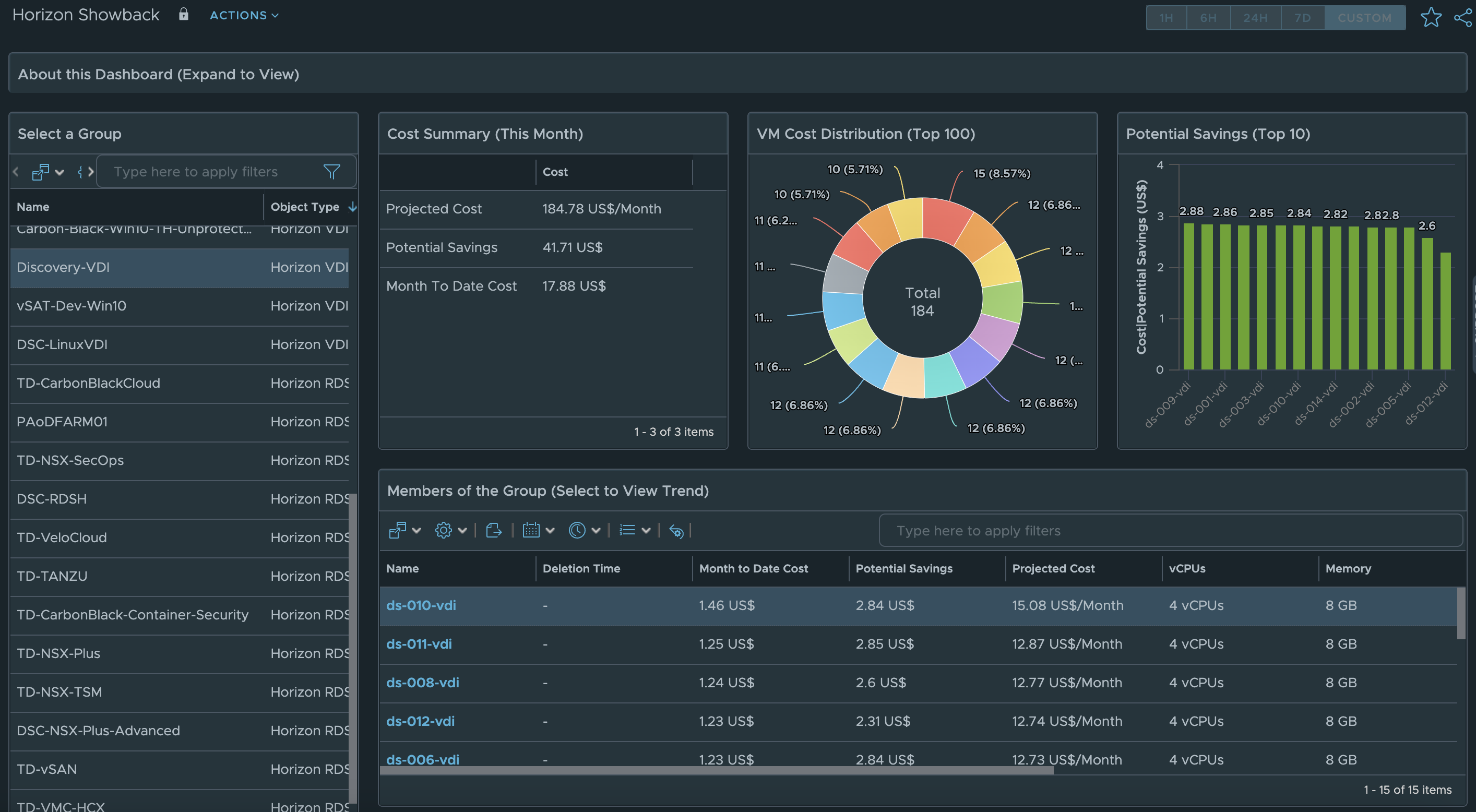
The latest release of the Management Pack for Horizon 2.7 is now available for download on the VMware Marketplace, as well for SaaS hosted customers in the Aria Operations Integration Repository. This post will cover the latest feature enhancements to the Management Pack and how best to leverage them.
Top Feature Enhancements
- Added support for Horizon 2309
- Updated Horizon Session Data Collection model
- New Cost and Pricing Dashboards
- Improved Deployment and Scale considerations documentation
Latest Documentation Link: click here
Horizon 2309 Support
As new editions of Horizon are released with updates to the APIs, there is usually a slight lag for supporting the new version until we are able to test and certify compatibility. That is why I highly recommend checking the interop guide to ensure that your specific version of Horizon matches the version(s) of the MP that has been tested and validated.
>>> Latest Interop Link <<<
For Horizon 2309, only MP4H version 2.7 is supported due to the API changes mentioned above. As we move forward and continue our migration from the VLSI APIs to the REST APIs, our hope is that supporting future versions of Horizon will be much simpler and allow for near zero day support.
Updated Horizon Session Data Collection Model
When the MP4H was originally created there were certain Horizon Metrics that were inadvertently created as Properties. Because their values are numerical in nature and were prone to updating frequently, this triggered platform level alarms in terms of performance and scalability, as Aria Operations does not expect Property values to change frequently.
As of MP4H 2.7, Last Session Duration, Session Start Time, and Session Status will now appear as Metrics instead of Properties.
Additionally, we have added the ability to support Kiosk or multiple sessions from the same User ID in the same VDI Pool. Previously, if the same User ID logged into the same pool, only one User Session object was visible and it was not feasible to troubleshoot a single instance of that User ID in the pool. Moving forward, a new session “instance” will be created for each additional session with an incremental appended numerical value at the end. This new model will allow each session to have its own unique performance metrics and session properties, so that each session can be evaluated for performance issues.
New Horizon Costing and Pricing Dashboards
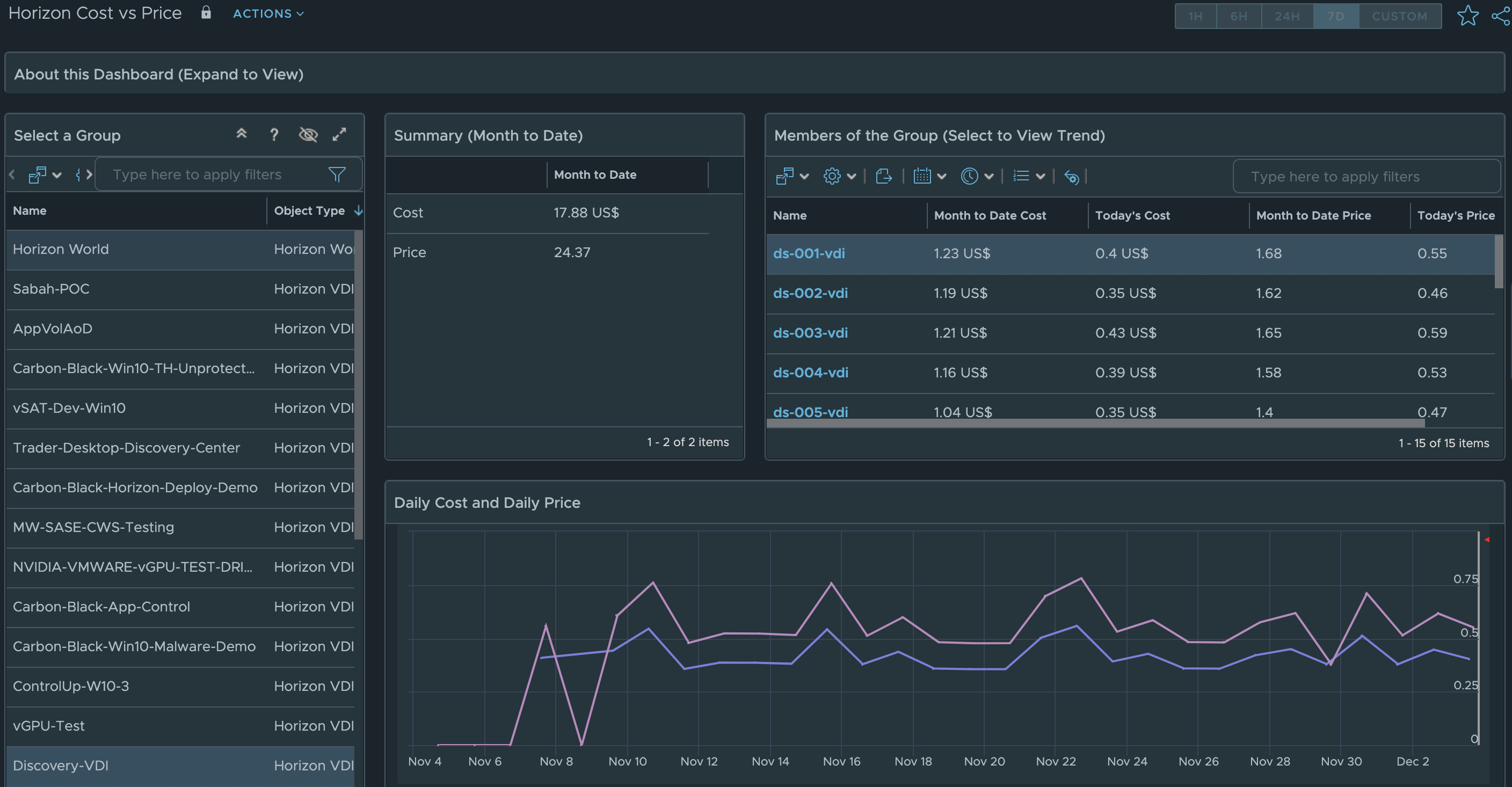
In MP4H 2.6, we added the ability to calculate Cost and Pricing metrics for Horizon Users, VDI Pools, and RDS Farms. With the new Cost and Pricing Dashboards we are able to provide additional Insight into Cost vs Pricing analysis for the entire Horizon Service.
From the Horizon Cost vs Price dashboard, simply select the Horizon World object for the entire service, or select an individual VDI Pool or RDS Farm, to see the Cost vs Price analysis.
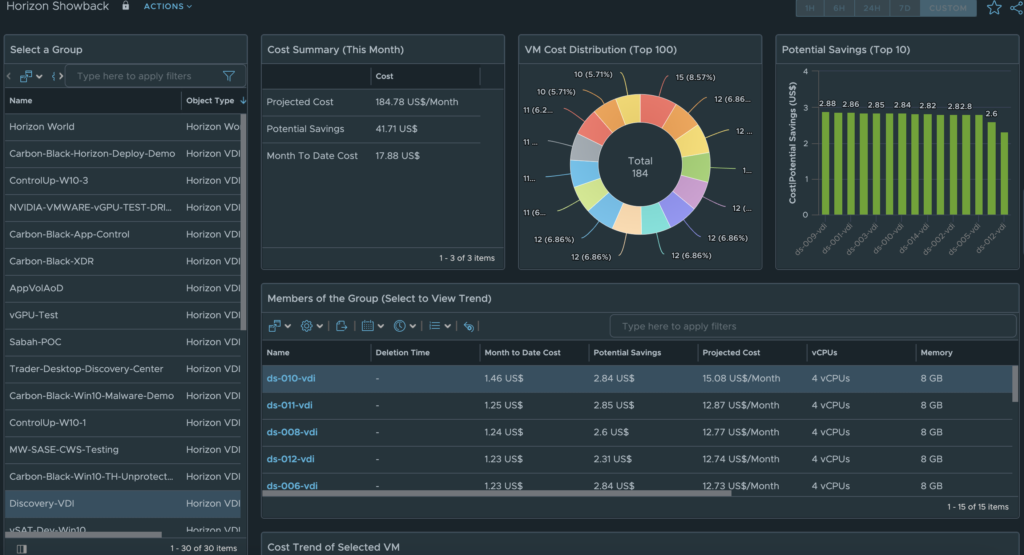
The Horizon Showback dashboard shows the actual Cost for the Horizon Service. As before, simply select the Horizon World, VDI Pool, or RDS Farm to see cost analysis for the selected object.
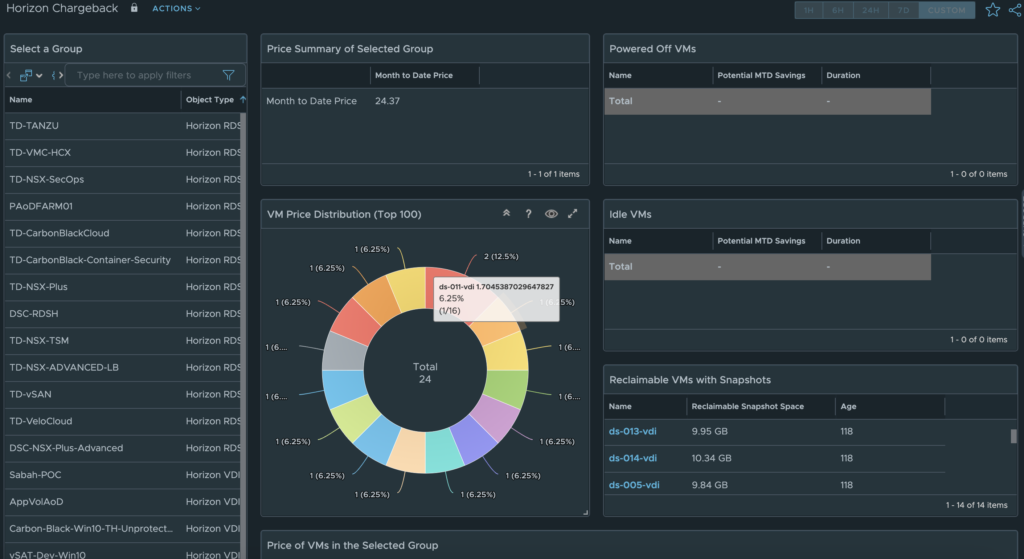
Finally, the Horizon Chargeback dashboard shows the Price (cost + service charges) for the entire Horizon Service (Horizon World object), or the selected VDI Pool/RDS Farm.
Improved Deployment and Scale considerations documentation
While the topics of deployment and scale considerations have discussed in previous blog posts, it was imperative that we included these topics in the product documentation, so that all customers can easily access them. The documentation can now be accessed in the link below.
>>>>> Documentation Link <<<<<
Previous post on this topic: https://cameronfore.com/2022/07/08/getting-started-with-mp4h-2-1-deployment-considerations/
Conclusion
With the latest release of the Management Pack for Horizon the priorities were to maintain compatibility with the latest release of Horizon, improve the Horizon VDI session data model to support kiosk use cases and ensure better platform performance, provide better insight into Horizon Cost and Pricing use cases, and provide easier access for all customers into critical documentation topics.
Stay tuned for more feature and content updates on the next release…
The Management Pack for Horizon 2.6.1 is now available!
As of August 8th, 2023, the Management Pack for Horizon 2.6.1 is now available. While this is considered a minor release in terms of net new features from 2.6.0, there have been a number of enhancements to the adapter to improve Horizon supportability for new versions of the Horizon platform as well as new features that allow for scripted actions to be performed on connected Horizon sessions.
Top Feature Enhancements
- Horizon VDI Session In-guest Scripted Actions
- Horizon 2303 and 2306 support
- Federal Information Processing Standards (FIPS) 140-2 enhanced security mode.
- Support for the latest Horizon SDK version 28.
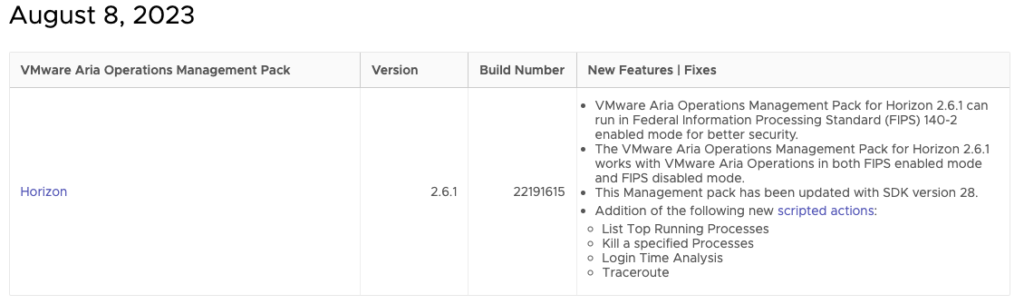
Link to Download: https://marketplace.cloud.vmware.com/services/details/vmware-aria-operations-management-pack-for-vmware-horizon-2-6-1-1?slug=true
Since scripted actions have been a long-standing customer ask, lets take a look at what actions are now supported when troubleshooting a Horizon User’s VDI session and how to use them.
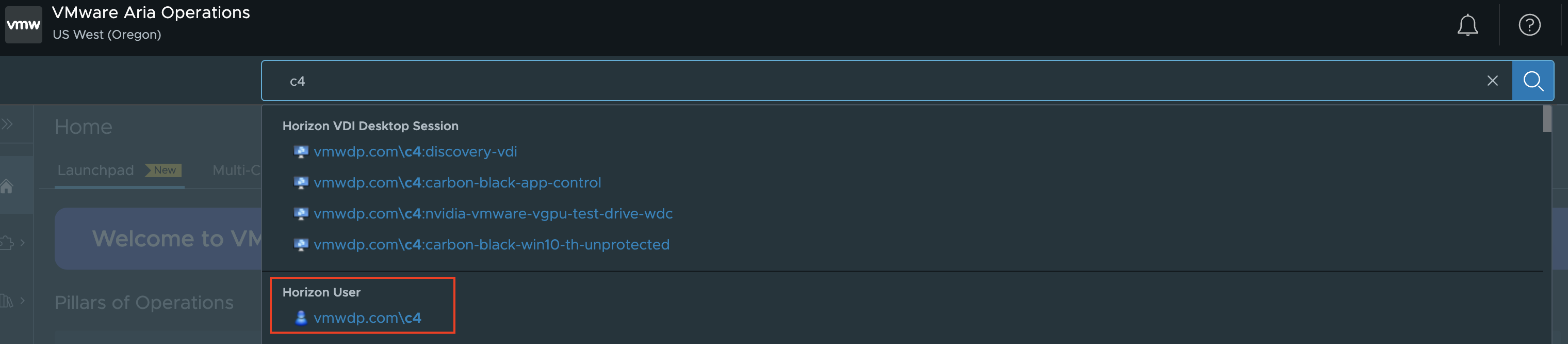
To get started, first we need to find a Horizon User’s VDI Session that we want to troubleshoot. This can be done multiple ways, but the easiest way is to use the search bar and search for the users AD Logon Name. You will see a couple of Horizon object types to select from, one is the User object and the other is the VDI session object(s). The User object is typically the best object to start with if you’re not sure which Session object the User is connected to. If there is only one session object, clicking it directly is the quickest path, but for the sake of this blog I will choose the Horizon User Object.
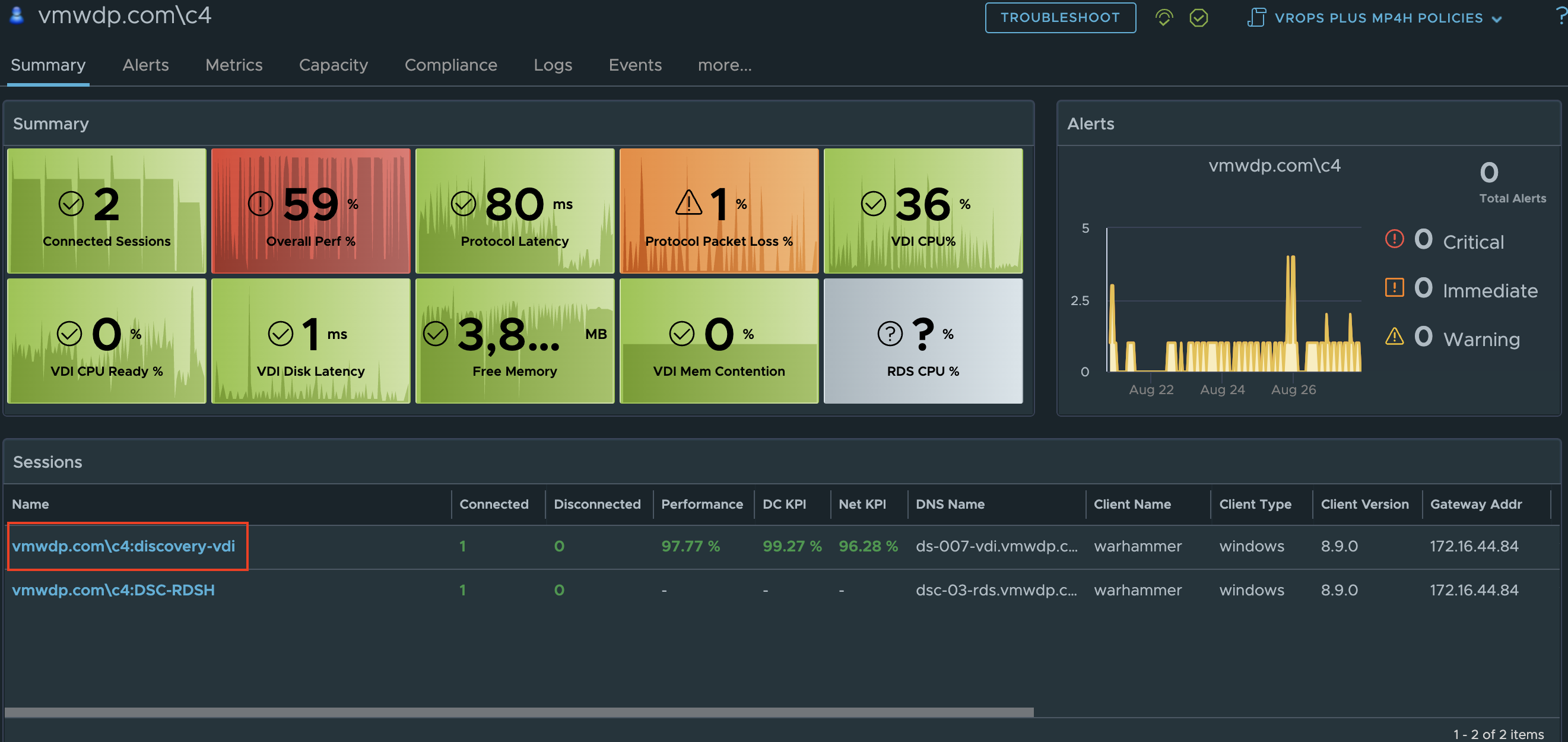
From the User Object Summary Page we will select the VDI session that we want to troubleshoot. **Note: It’s recommended to perform this action on sessions that have Connected Sessions. If the session is in a Disconnected state and the relationship to the desktop no longer exists, then the action will not be able to be performed.
From the User Session Object Summary Page you will notice a new Actions menu option. Click Actions to see the list of available scripted actions that can be performed on the Horizon VDI session.
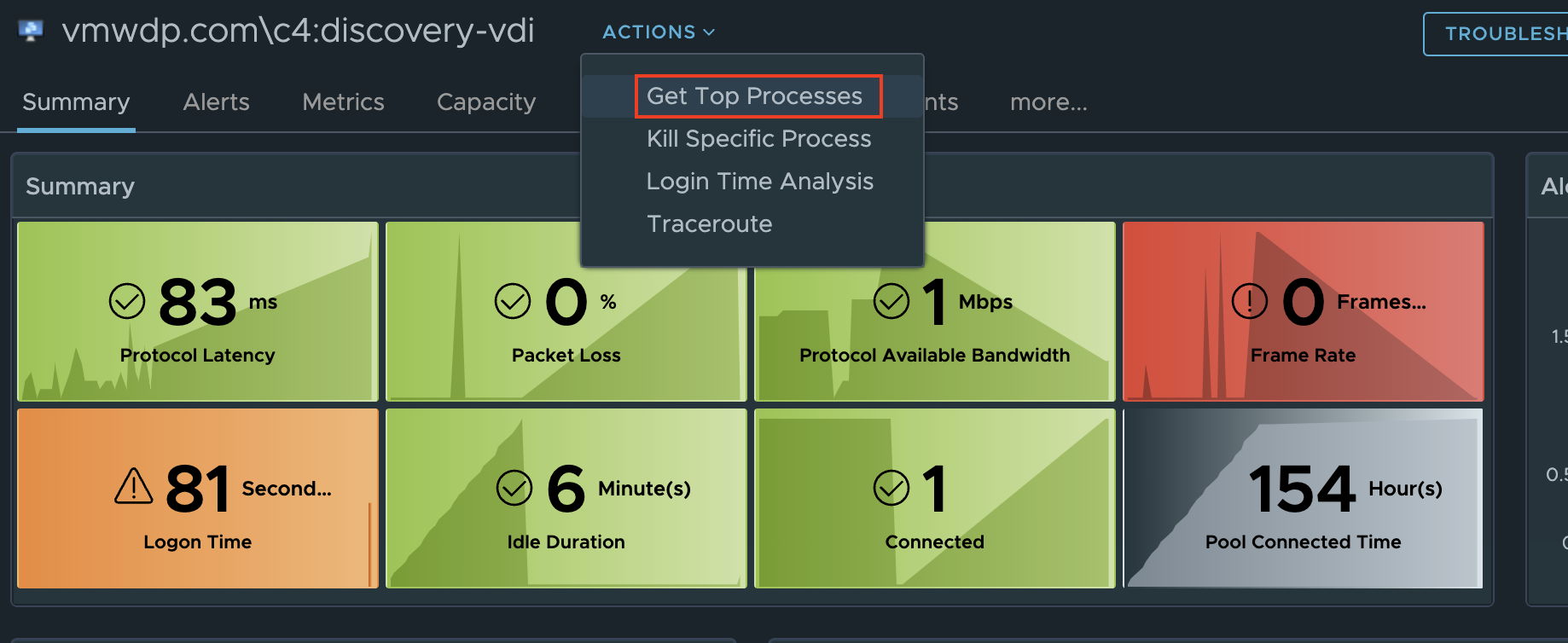
The first available action is “Get Top Processes”, which is meant to provide additional insight as to which processes are consuming the most CPU, Memory, and I/O. This is helpful in scenarios where you see the desktop CPU Usage is > 95% or Available Memory is low < 512MB, and you need to know which process(es) are consuming most of the resources.
Selecting “Get Top Processes” will open a prompt where you will need to provide AD credentials that has admin level access to the Guest OS that can run the desired script.
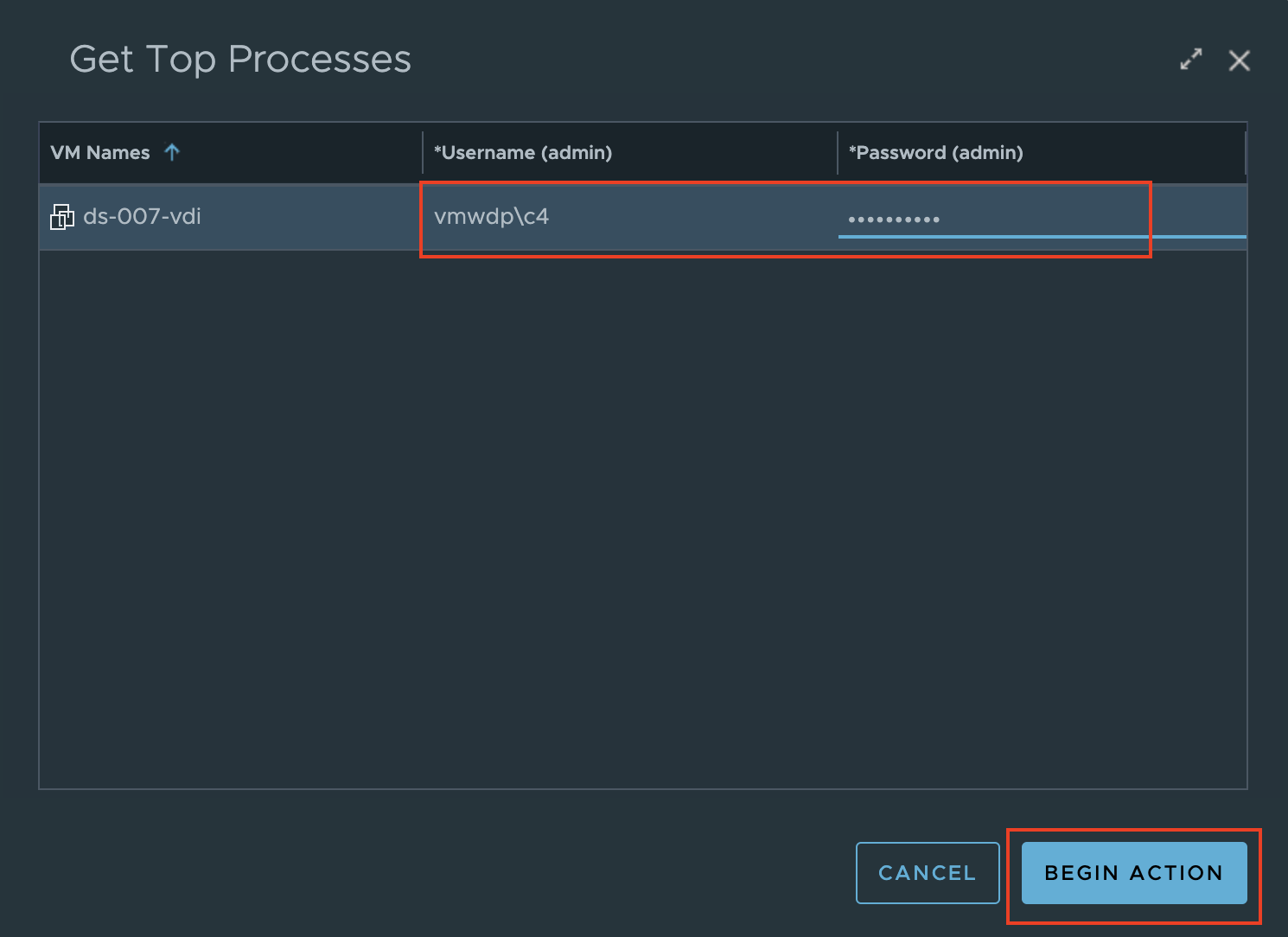
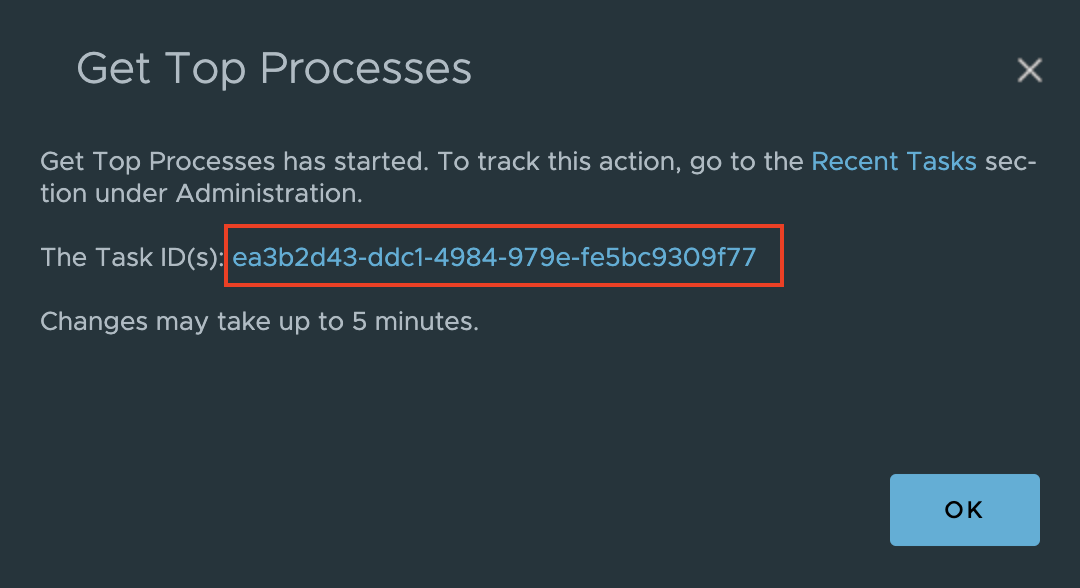
After clicking “Begin Action”, another prompt will appear that lets you know the Task has been created. Clicking on the Task ID will take you a new page that will allow you to watch it’s progress till completion.

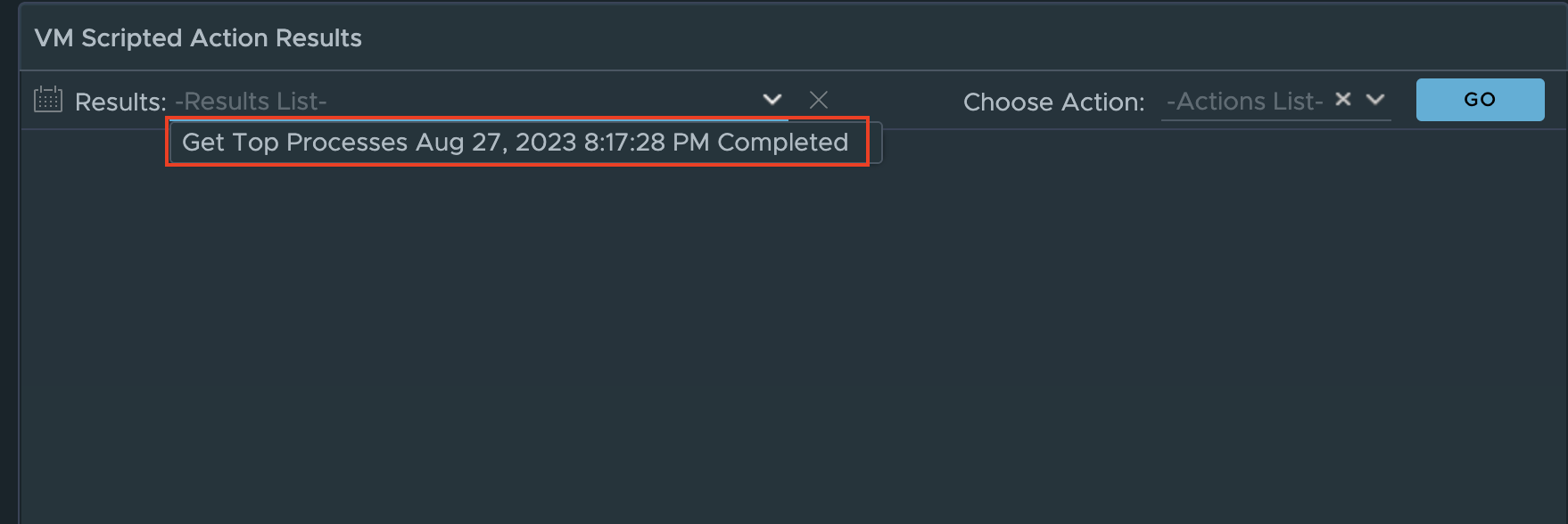
Once the task is completed, click the browser back button to return the Horizon Session Summary Page. Scroll down until you see the “VM scripted Actions” widget. Click the “Results:” down arrow and select “Get Top Processes…” from the list.
This is will display the results of the Get Top Processes script if the proper credentials were provided. Otherwise, you may see an error stating the action did not have the appropriate credentials.
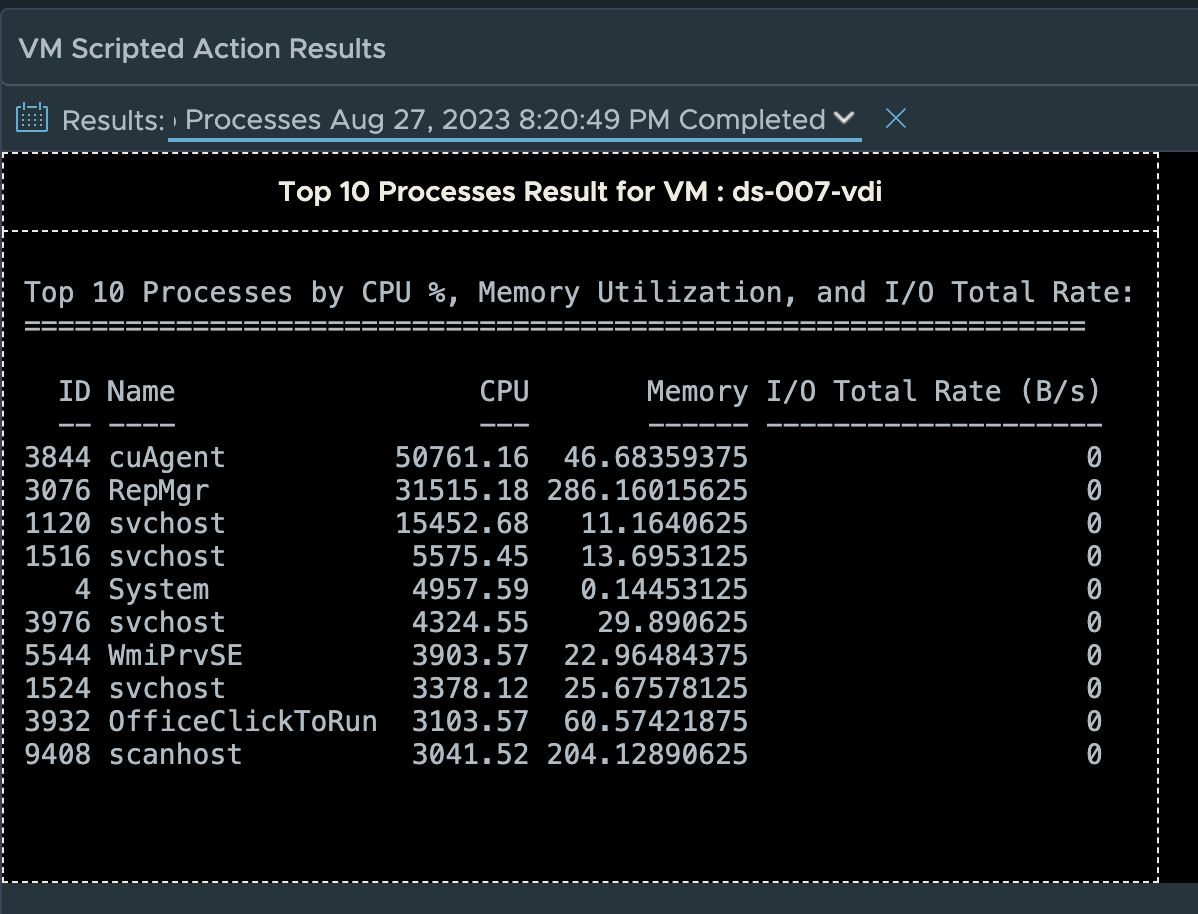
After reviewing the results of the “Get Top Processes” widget, you may decide that you need to terminate a process that is causing performance issues for the user. This is the purpose of the “Kill Specific Process” scripted action.
Just like “Get Top Processes” workflow, select the “Kill Specific Process” action from the “Action” menu. A prompt will appear asking you for the Process ID that you want to terminate and admin credentials that have Guest OS level rights to run the script.
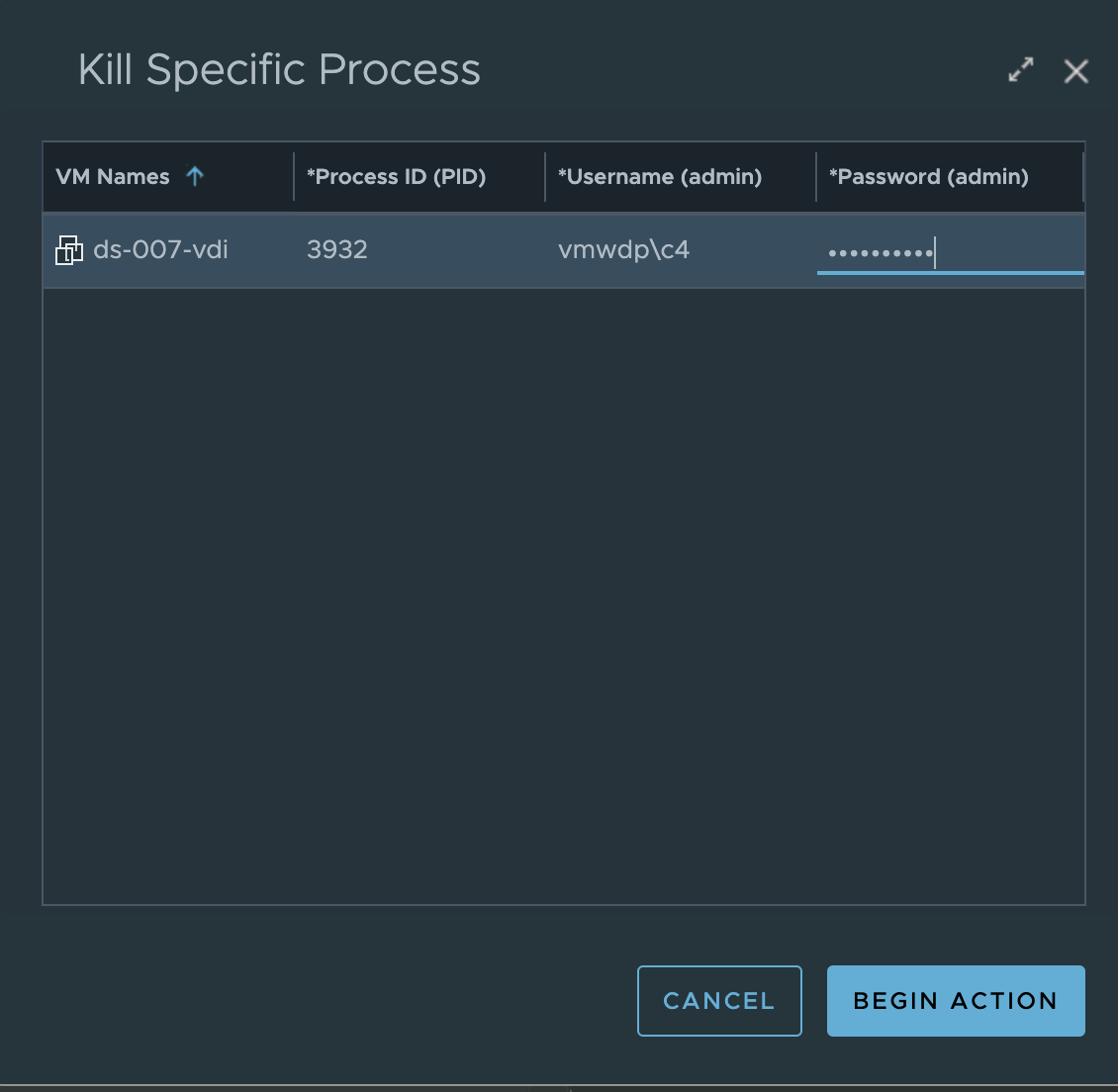
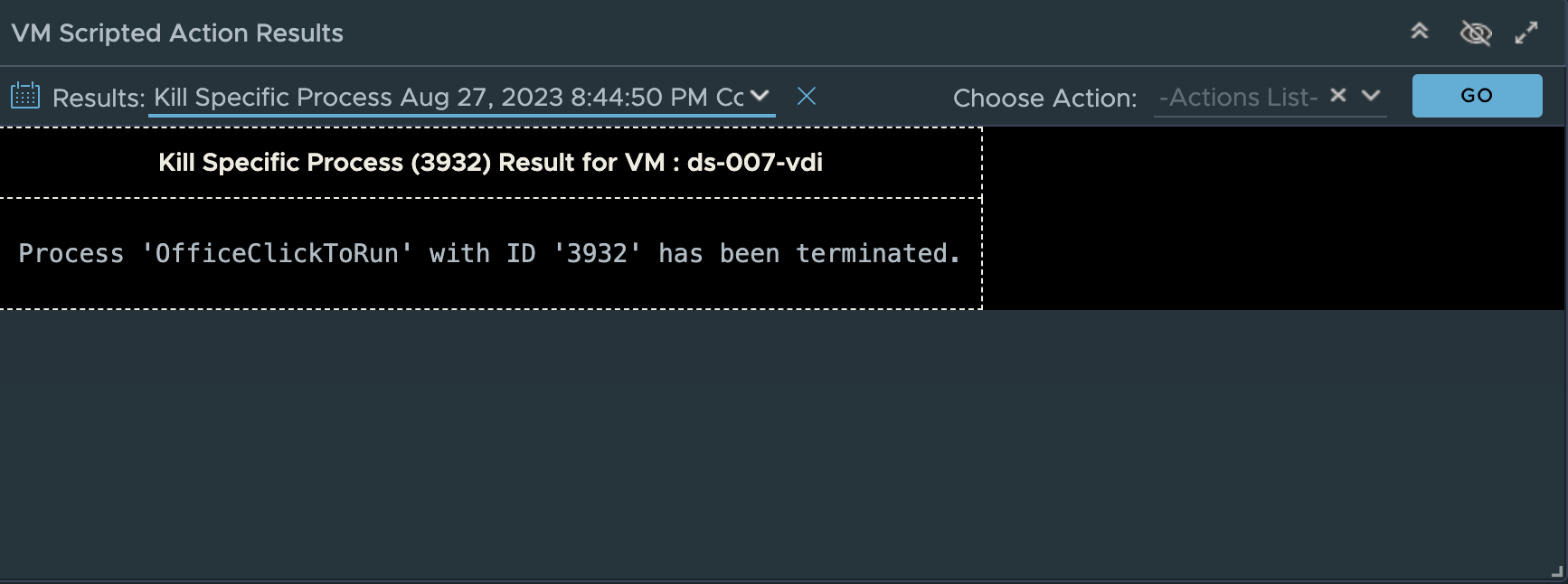
Clicking “Begin Action” will provide you a prompt with the Task ID and link to review the progress of the script execution. Once the action shows “completed”, click the back arrow to return to the VDI Session summary page. Scroll to the “VM Scripted Actions” widget, click the “Results:” down arrow and select the “Kill Specific Process” result to see the action was successful.
Since the workflow to execute and monitor the actions are basically the same, I will just focus on the purpose and expected outcome of the remaining two actions.
From the beginning of the Management Pack for Horizon we have supported the ability to show and display excessive login times by session, by user, and by which VDI pools have the longest login times.
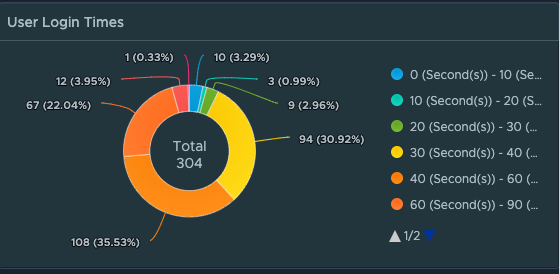
However, to get a full breakdown of every step of the logon process and what factors/events are contributing to the login process requires in-guest scripting to evaluate the timing of all of the logon events. While a portion of the logon process is Horizon brokering, most of the login sequence is purely based on Windows events and services such as Group Policy processing, User Profile loading, Appx file associations and packages, Logon Tasks, App Volumes, and Dynamic Environment Manager (DEM).
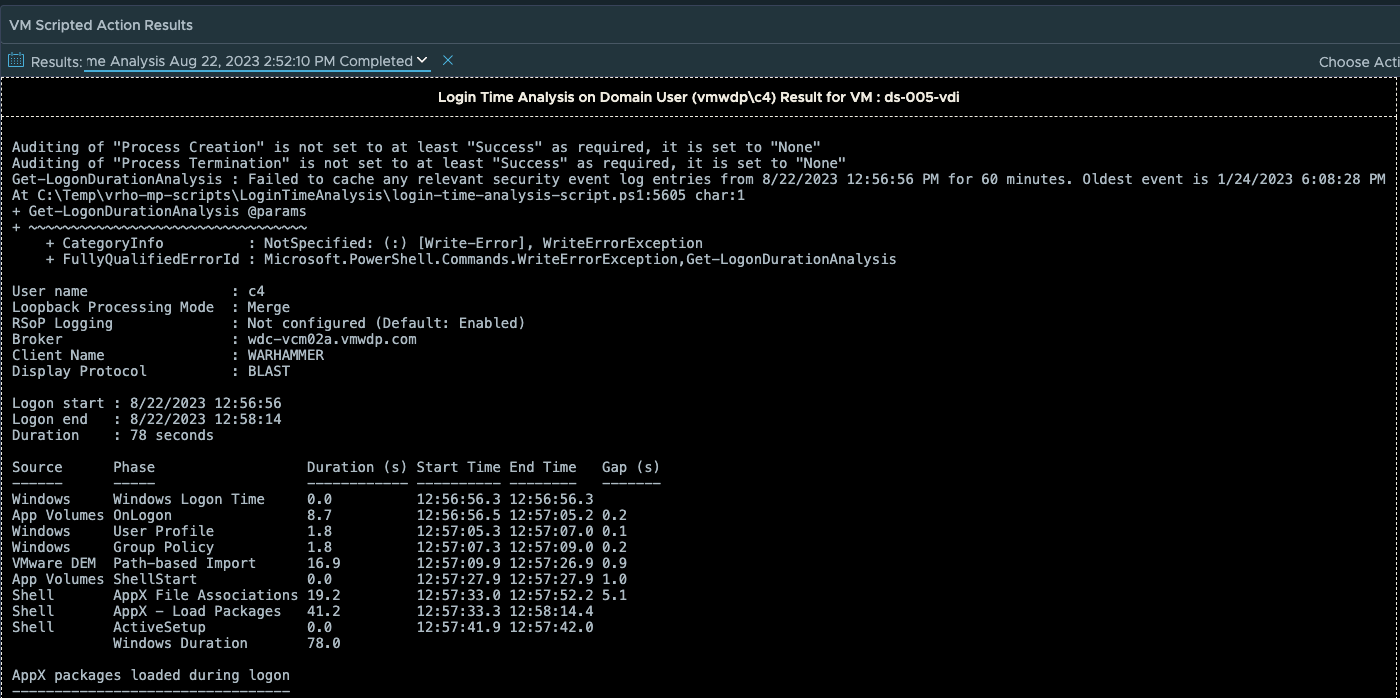
With MP4H 2.6.1, we now provide a detailed Logon Time Analysis scripted action to perform the necessary event analysis and provide a detailed report that shows the breakdown of the logon events and their processing time.
To execute the script properly, you will need to provide the domain\username of the logged in user who you are running the analysis for, as well as the admin credentials that are required to execute the script within the guest OS.
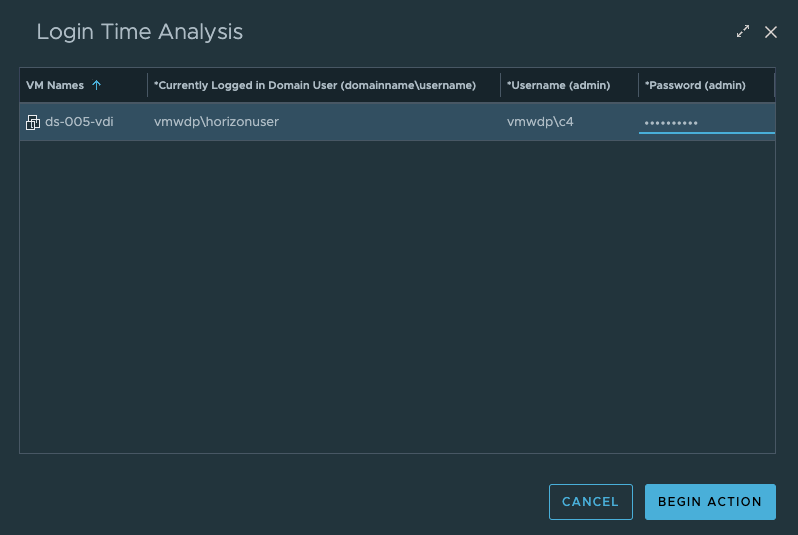
The output can vary depending on which services you are using in your environment and the number of policies and tasks that are being executed. Since the output is long I split it across two images:
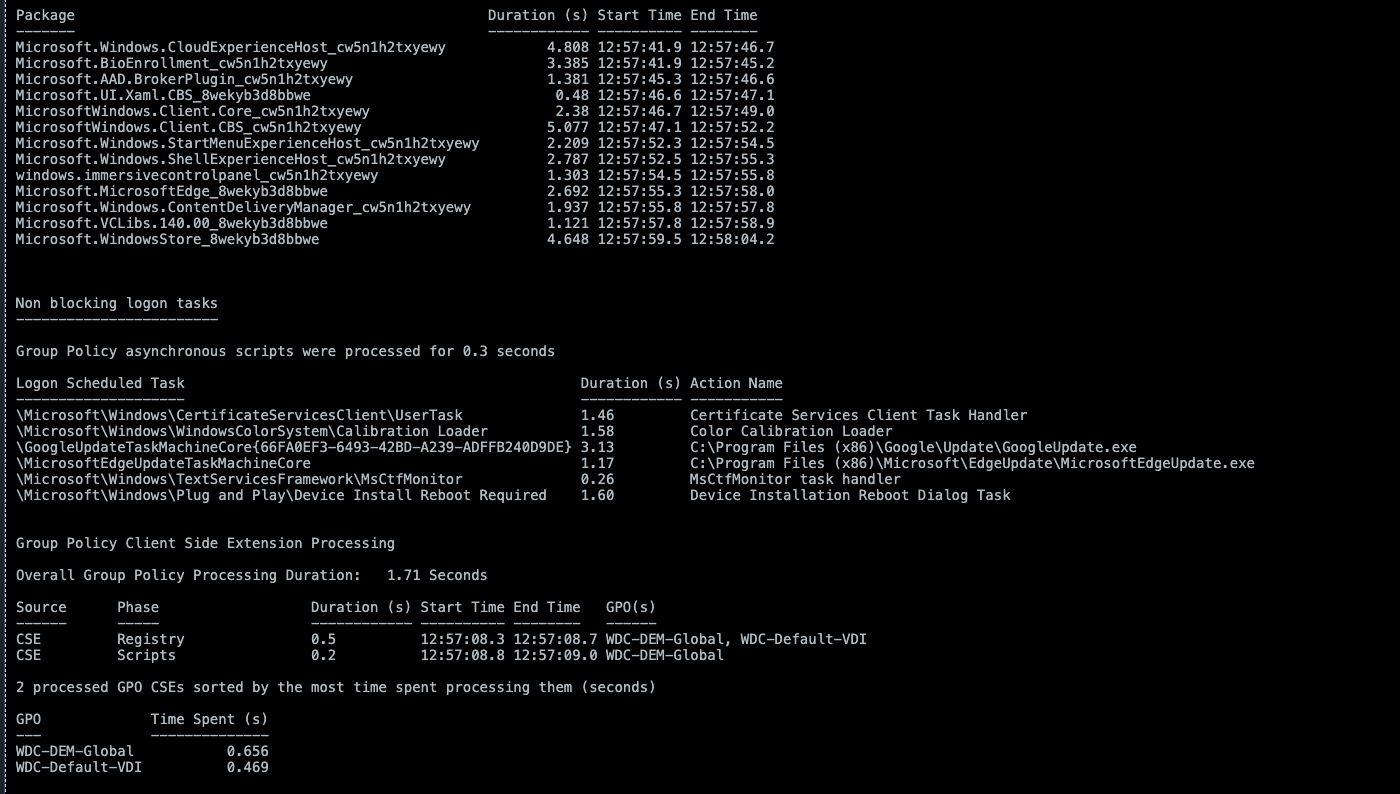
**Note that the total Logon time in the output of the script will be slightly less than the time shown on the Users Session object. This is due to the script only having the rights to view what events are happening at the Windows Guest OS level. Any Horizon events such as brokering are outside of the scope of the scripted action.
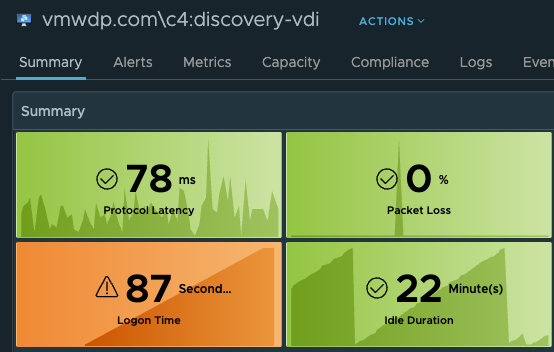
In this specific output of the script, the “Duration” of the login was 78 seconds. However, the User’s VDI Session is showing a total Logon Time of 87 seconds. This is expected behavior given how the two methods of calculating the logon time are very different.
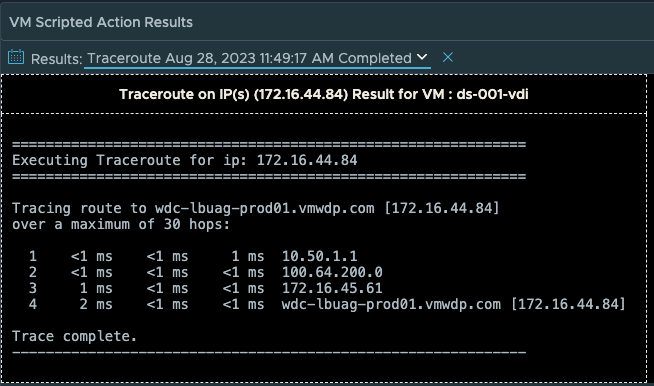
Lastly we have added the option to perform a “Traceroute” from the users desktop to any network target or route that you are trying to troubleshoot performance to. By default the IP Address of the Horizon Client will be populated, but this can be changed to another IP address that is more relevant for a given network troubleshooting scenario.
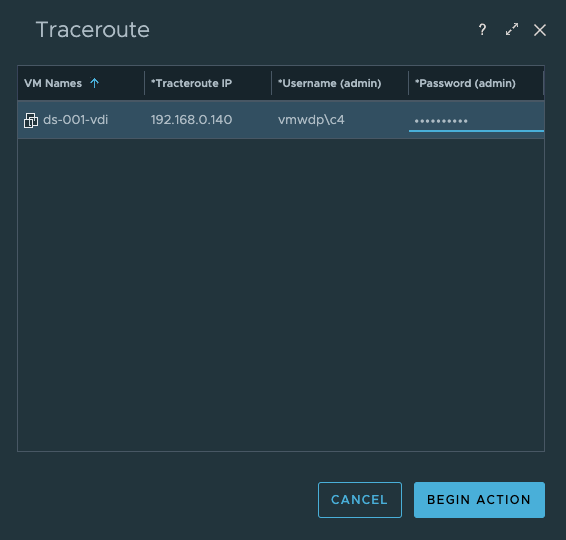
This action is helpful in determining if there are any network communication or performance issues along the route that requires troubleshooting.
In conclusion, while MP4H 2.6.1 is only a minor release in terms overall features added, we have added some very important functionality to improve how our customers can gain additional insight into performance issues within the Guest OS, take corrective action if needed, provide a detailed login analysis of issues impacting the user’s login experience, as well as providing the ability to do additional network troubleshooting from the User’s desktop.
For the next release, we hope to bring even more valuable features to enhance our customers ability to provide insight and analysis of their Horizon environments and Users. So stay tuned…
MP4H Horizon World Operations Dashboard Deep Dive
The Management Pack for Horizon 2.5 is now available!
In the latest major release of the Management Pack for Horizon we are announcing a number of new features and content to improve end-to-end visibility of the Horizon service, scale, as well as new VDI Pool and RDS farm automations. This blog will focus on providing additional insight into what features were released and how they relate to providing additional value and insight for monitoring a Horizon deployment. To keep the blog from running too long, I’ve decided to break it into multiple parts.
The latest Release Notes can be found here: https://docs.vmware.com/en/Management-Packs-for-vRealize-Operations/services/rn/release-notes-for-vrealize-operations-management-packs/index.html
The latest Documentation here: https://docs.vmware.com/en/Management-Packs-for-vRealize-Operations/2.5/Horizon/GUID-69D66CA6-FB78-4688-BCF9-752EEB34599E.html
Download the latest MP here: https://marketplace.cloud.vmware.com/services/details/vrealize-operations-management-pack-for-horizon-2-5-1?slug=true
Improved End-to-End Visibility:
For our first topic, lets discus what features and content have been added to improve end-to-end visibility of the Horizon Service.
- New Dashboard: Horizon World Operations Overview
- New UAG and Connection Server Route Performance/Availability metrics
- New VDI Pool and RDS Farm Cost Analysis metrics.
- New VDI Pool and RDS Farm Image Standardization “mismatch” count metrics
New Dashboard: Horizon World Operations Overview
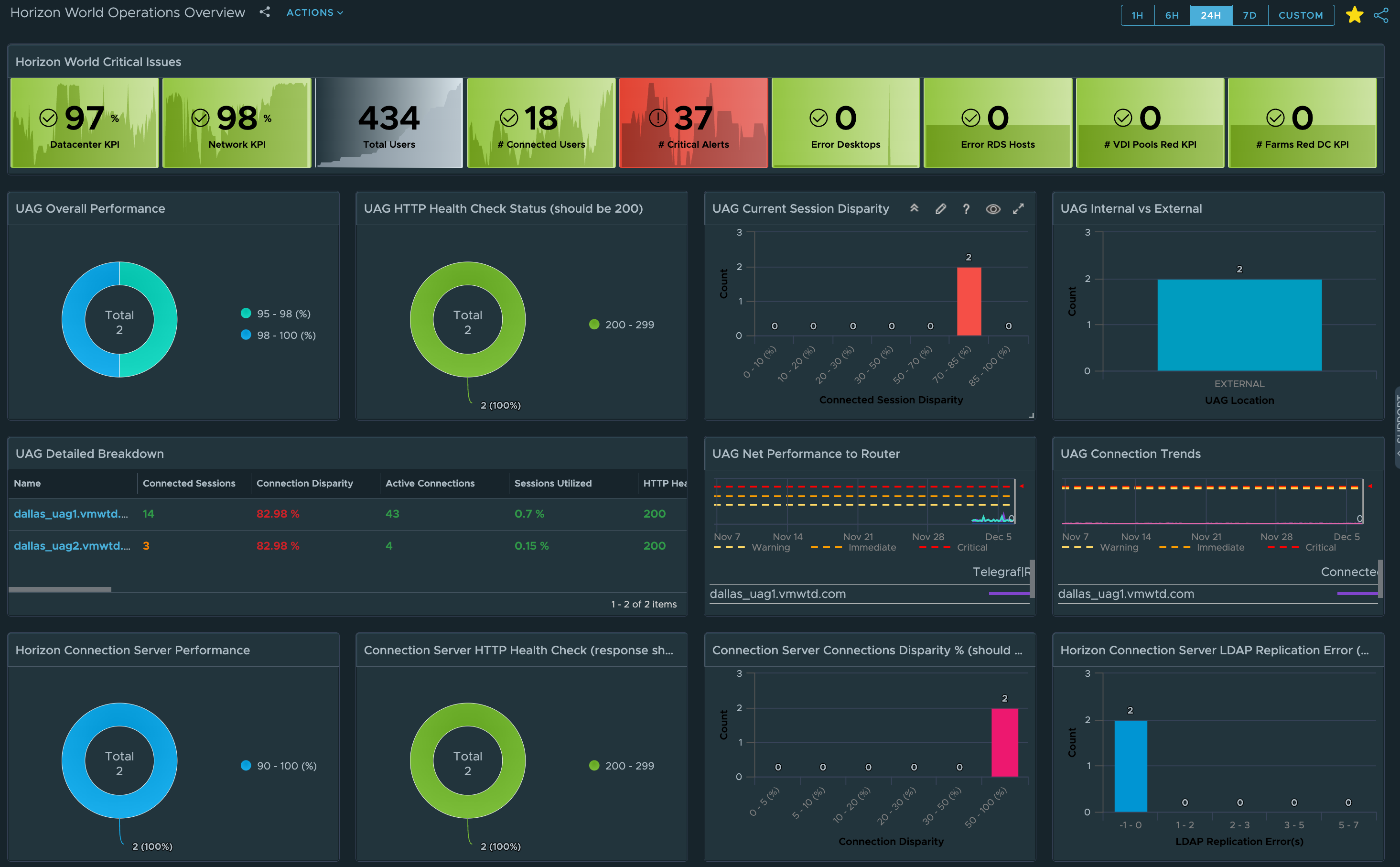
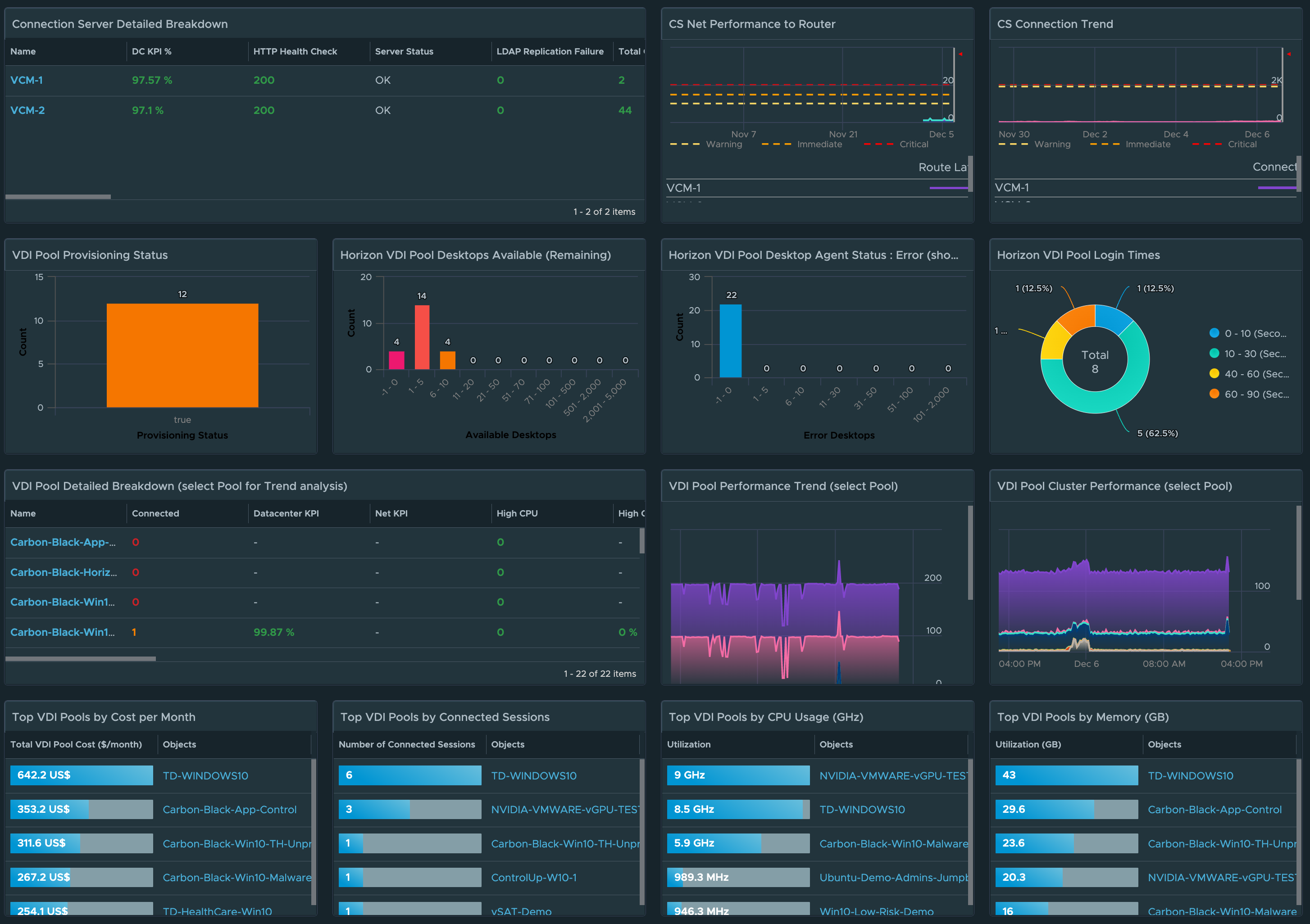
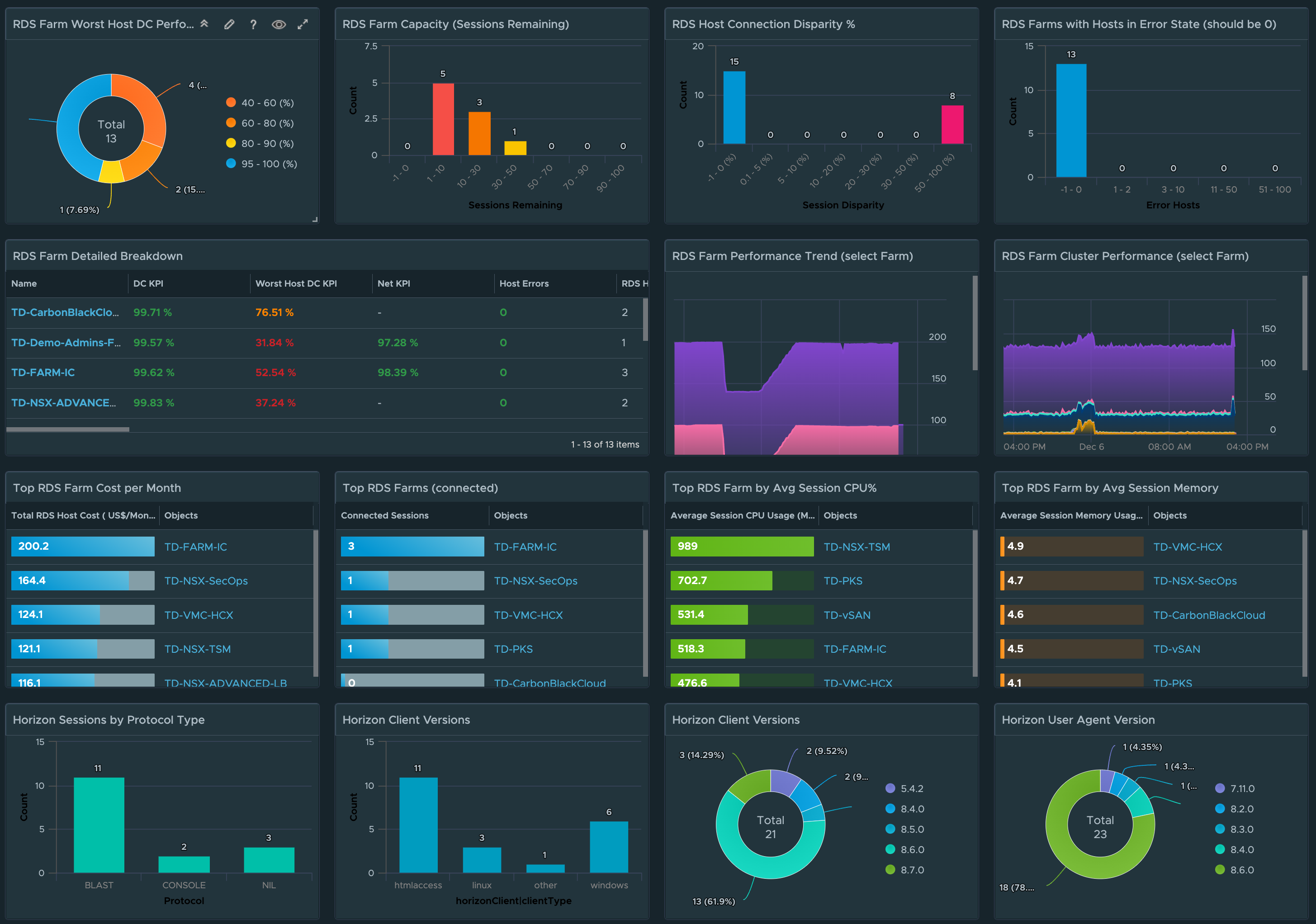
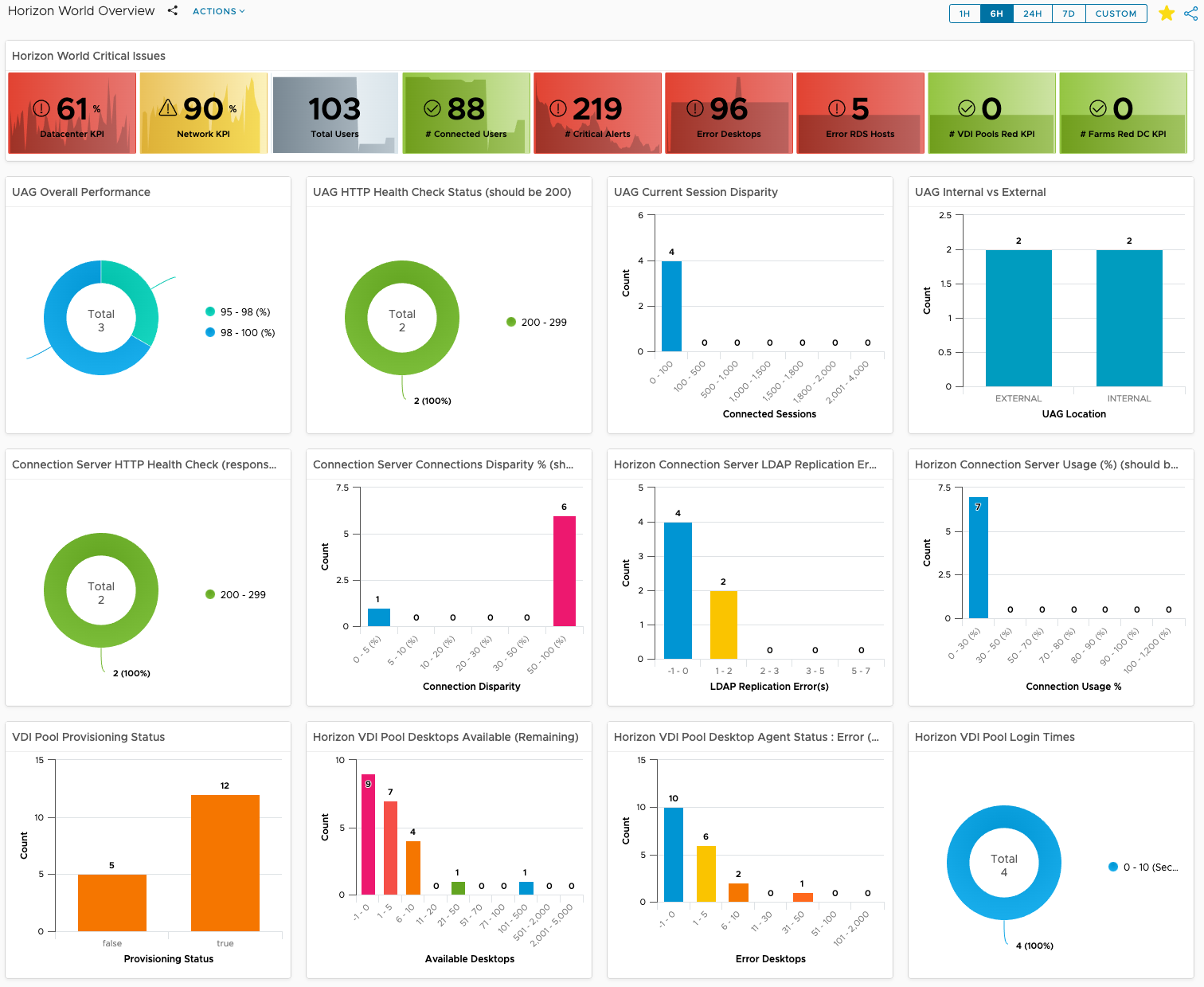
The new Horizon World Operations Overview dashboard is an upgrade/replacement of the previous Horizon World Overview dashboard. As the name suggests, this dashboard is highly focused on providing “operational” insight into the overall Horizon service in terms of performance, risk, availability, and compliance.
Unified Access Gateway Visibility
In the first image, we can see overall UAG and associated session performance, as well the the health of the Horizon service for the UAG. UAG session disparity shows “in-balance” on how Horizon sessions are being load balanced across the available UAG’s in a Horizon Pod. A detailed UAG List view has also been added to make it simpler to sort and list UAGs by their critical KPIs.
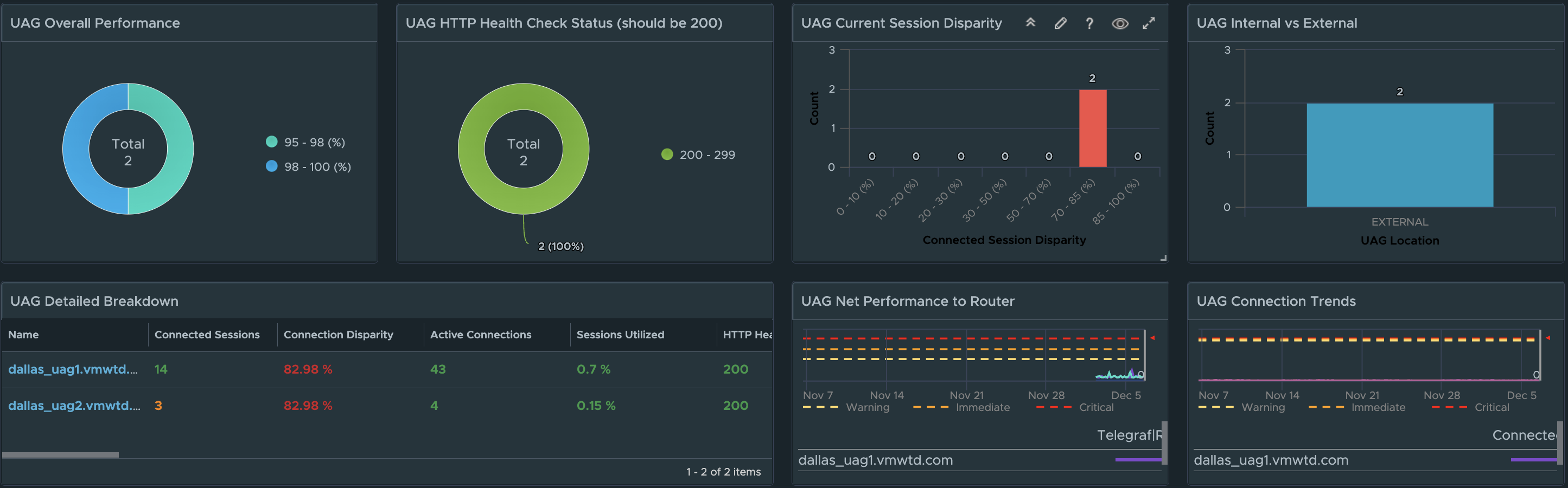
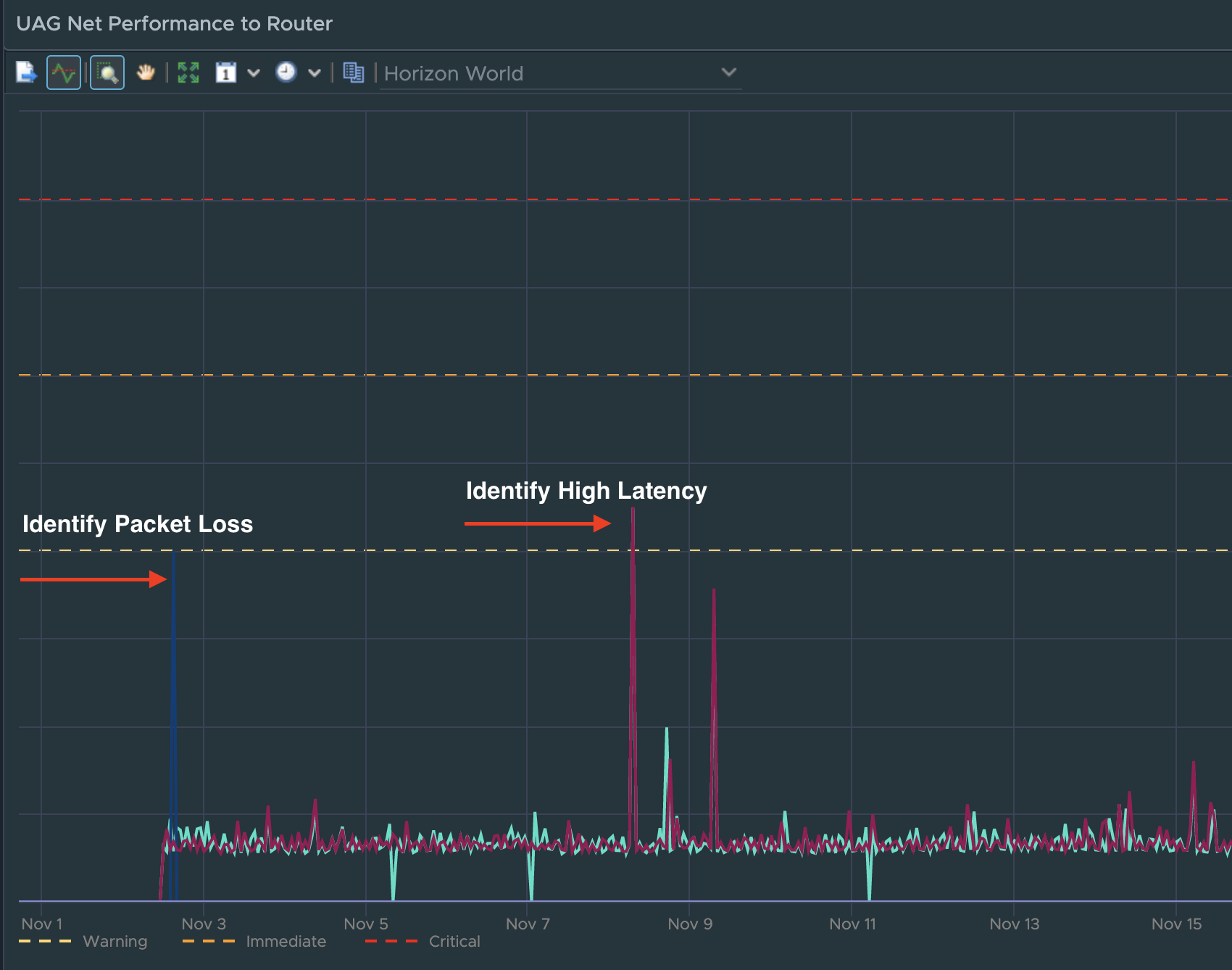
Taking advantage of the new UAG “Route Latency” and “Route Packet Loss” monitoring feature, from a single dashboard we can monitor overall performance and availability of designated routes across all UAGs. If a specific UAG experiences high latency or packet loss for a specified route, the provided chart will show the additional performance overhead the network route is having on the UAG’s connected sessions.
Connection Server Visibility
For the Horizon Connection Servers, in a single dashboard, we provide visibility to the overall performance, availability, and risk across to all Connection Servers in every Horizon Pod. In the dashboard image below, we have provided distributions to highlight which Connection Servers are having performance issues, failing their Horizon service “Health Checks”, have a large disparity in the number of Connections being serviced, as well as failing their LDAP replication.
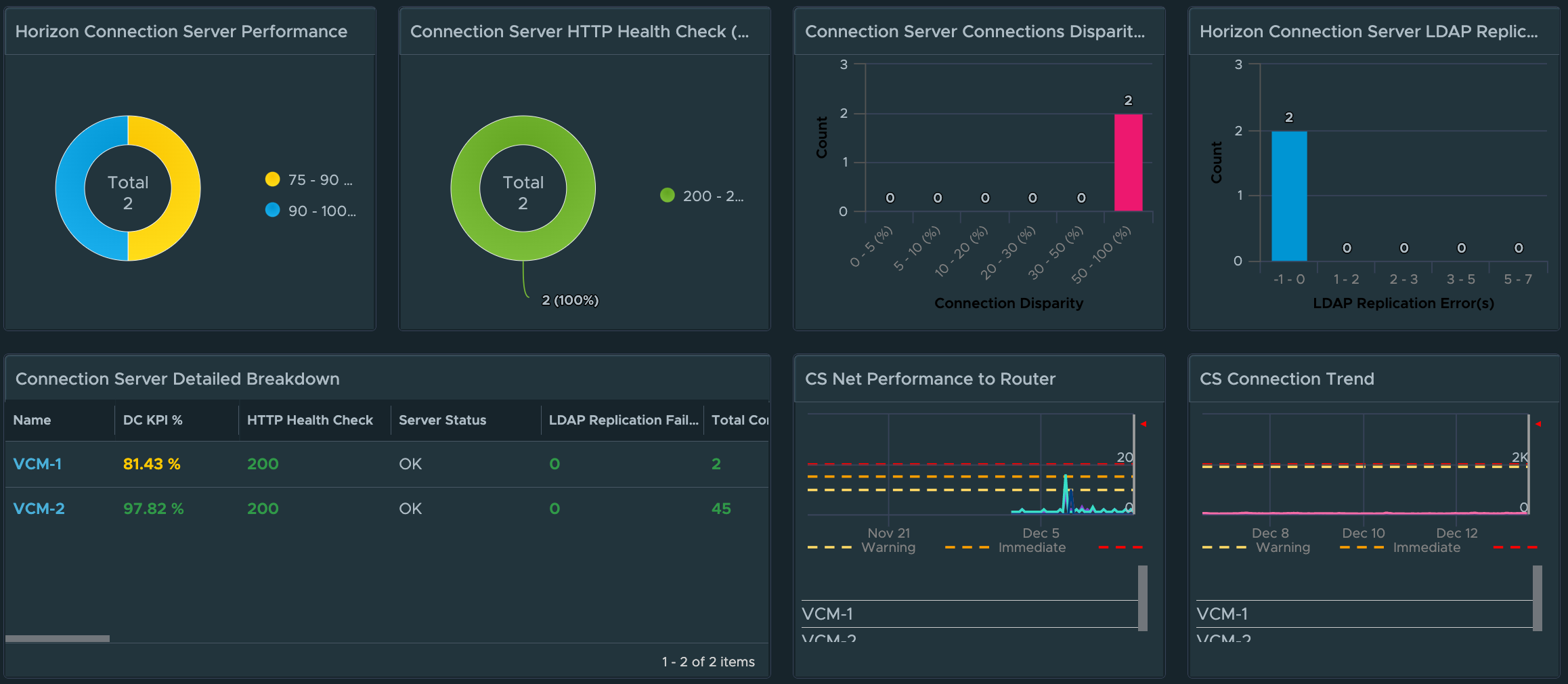
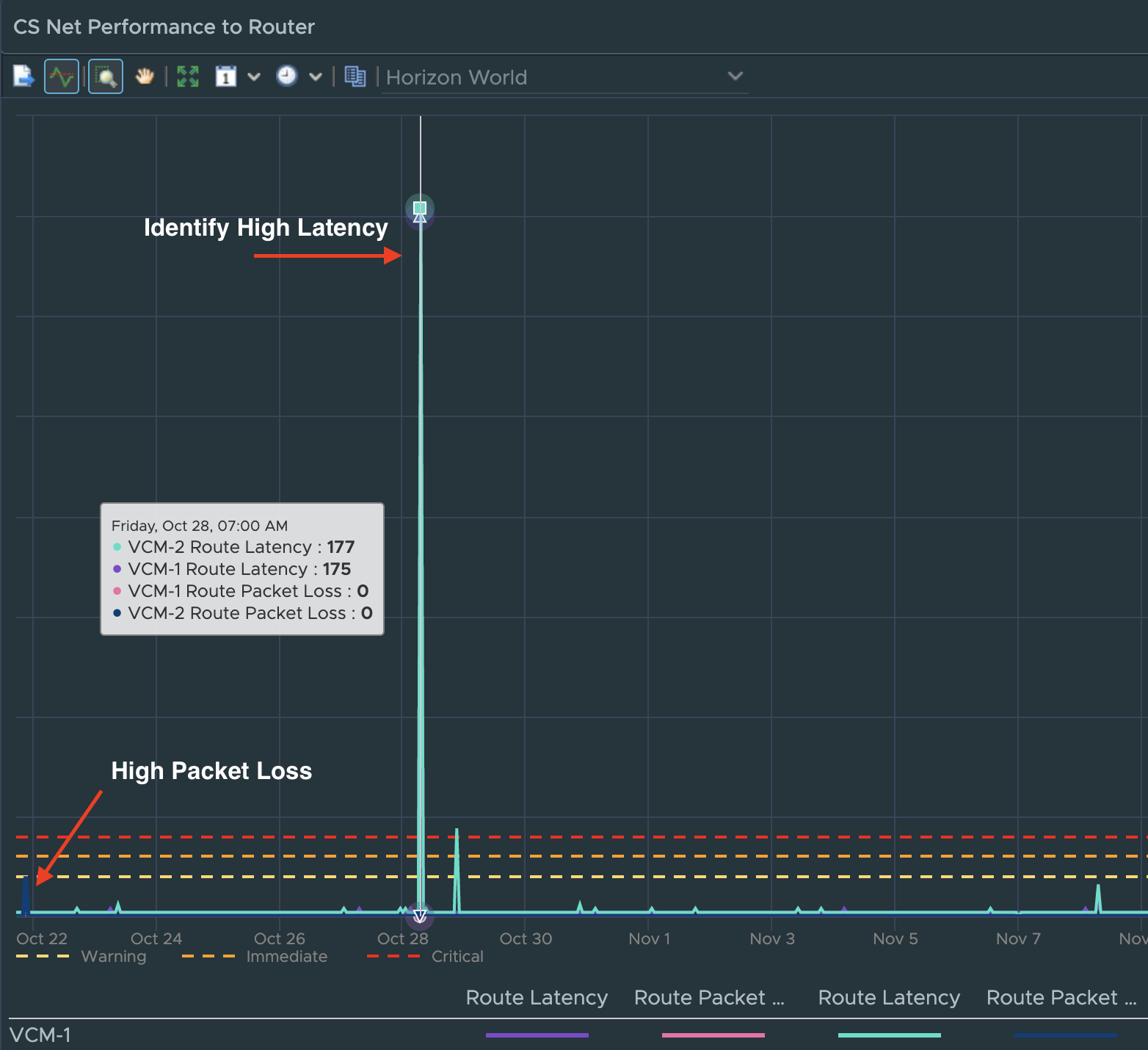
Similar to the UAG, we have added a new list of Connection Servers that can easily be sorted by critical KPI or property. We have also added a “CS Net Performance to Router” widget to quickly evaluate the overall performance and availability of the designated route to the CS’s in the Horizon Pod.
VDI Pool Visibility
For Horizon VDI Pools, we provide insight into pools which have provisioning errors, low on available capacity, have desktops in an “error” state, and which pools have the worst login times.
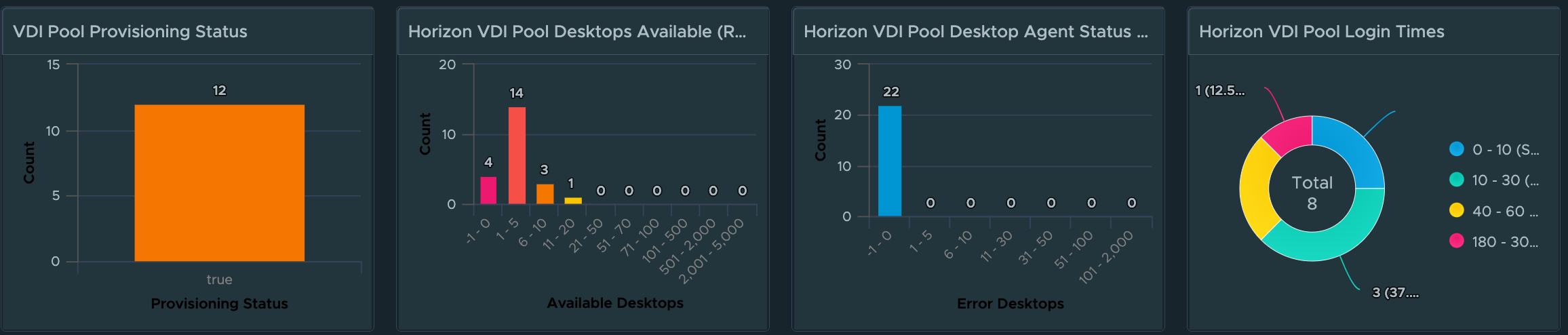
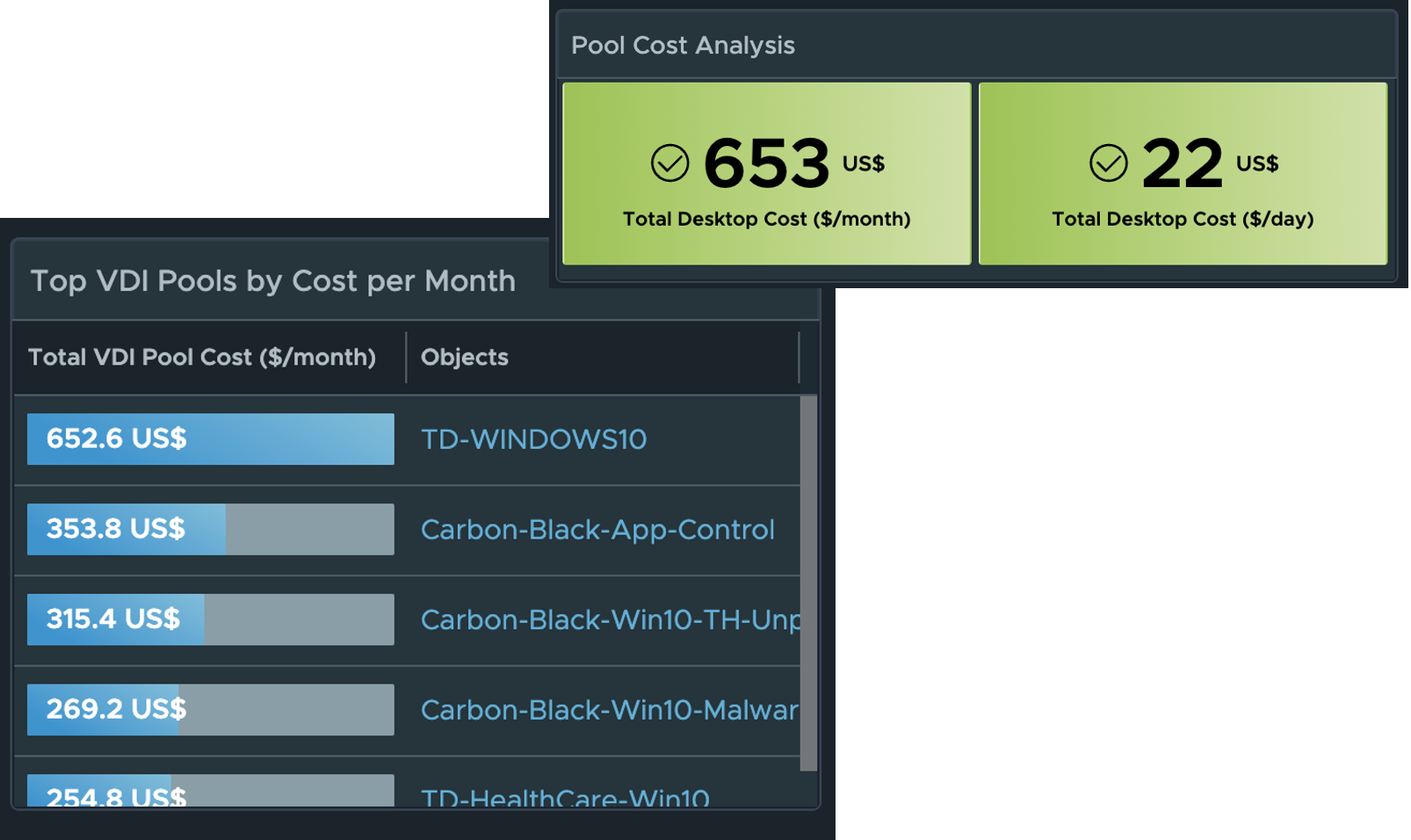
A detailed list view has been added so that Pools can be sorted or filtered by their critical KPIs and Properties. We have also made the Pool list view interactive, so that selecting an individual pool provides additional insights into the meaningful performance KPIs impacting the Pool, as well as the meaningful KPIs from the from the supporting vSphere Cluster.

Leveraging the vROPs Costing engine, we are now able to provide the estimated cost per VDI Pool and per desktop based on the compute required for the virtual desktops.
RDS Farm Visibility
For RDS Farms, we provide insight into RDS Farms that have RDS Hosts with performance issues, estimated Farm Session capacity remaining based on actual compute, RDS Hosts that have large disparity of Connected Sessions, and RDS Farms with Hosts in an Error state.

We have also added a RDS Host list view to make it easier to sort by Farm critical KPI or property. Selecting a RDS Farm will provide a stacked trend chart of the KPIs and the supporting vSphere Cluster performance KPIs.

RDS Farm cost analysis metrics are also provided based on the compute required for the RDS hosts, as well as the computed CPU and Memory required per session.

Horizon Client and Agent Compliance
For Horizon Client and Agent Compliance, distribution views are provided to show a break down of the various protocol types, Client Type, Client Version, and Horizon Agent versions currently in use. These views can quickly identify users with old Client Versions or Desktop agents that need to be upgraded in the Horizon environment.

Connection Server Compliance and Authentication Configuration Errors
For Connection Server compliance and authentication configuration errors, the distribution views highlight the Connection Servers by build and Certificates no longer valid. If True SSO and SAML authentication is being used, you can quickly identify Pods with SSO Connector Errors or SAML authentication errors.

VDI Pool and RDS Farm Image "mismatch"
To provide greater insight into VDI Pools and RDS Farms with image provisioning issues, we have added the ability for the Management Pack to detect VM’s where the underlying disk Image does not properly match the Snapshot configured for the Pool or Farm. When a mismatch is detected, we will count the number of mismatches and provide it as a running count for the new “Desktop Image Mismatch” and “RDS Host Image Mismatch” metric. Customers can then alert on this metric to quickly identify which Pools and which Farms require remediation.
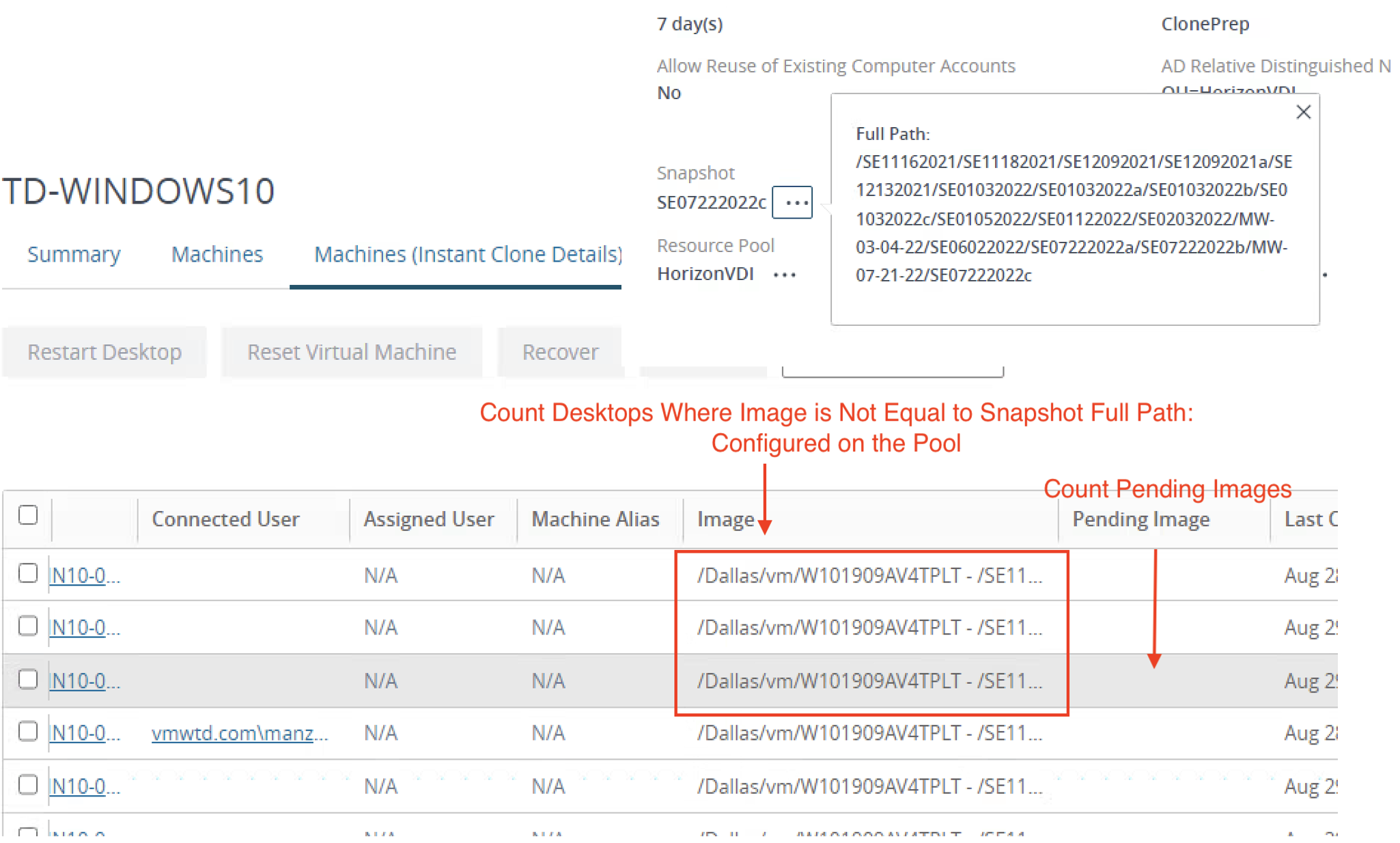
As you can see, there have been a significant number of improvements to the latest Management Pack for Horizon in terms of providing greater insight into performance, availability, risk, and compliance. In the next blog post, I will touch on the new built-in Horizon automations, updated Horizon Object Summary Pages, and scale features that have been added.
How to Deploy and Configure MP4H 2.x
This video is meant to be high-level overview of the deployment and configuration of the latest Management Pack for Horizon. For additional considerations please read the Getting Started with MP4H 2.1: Deployment Consideration blog.
Getting Started with MP4H 2.x: Deployment Considerations
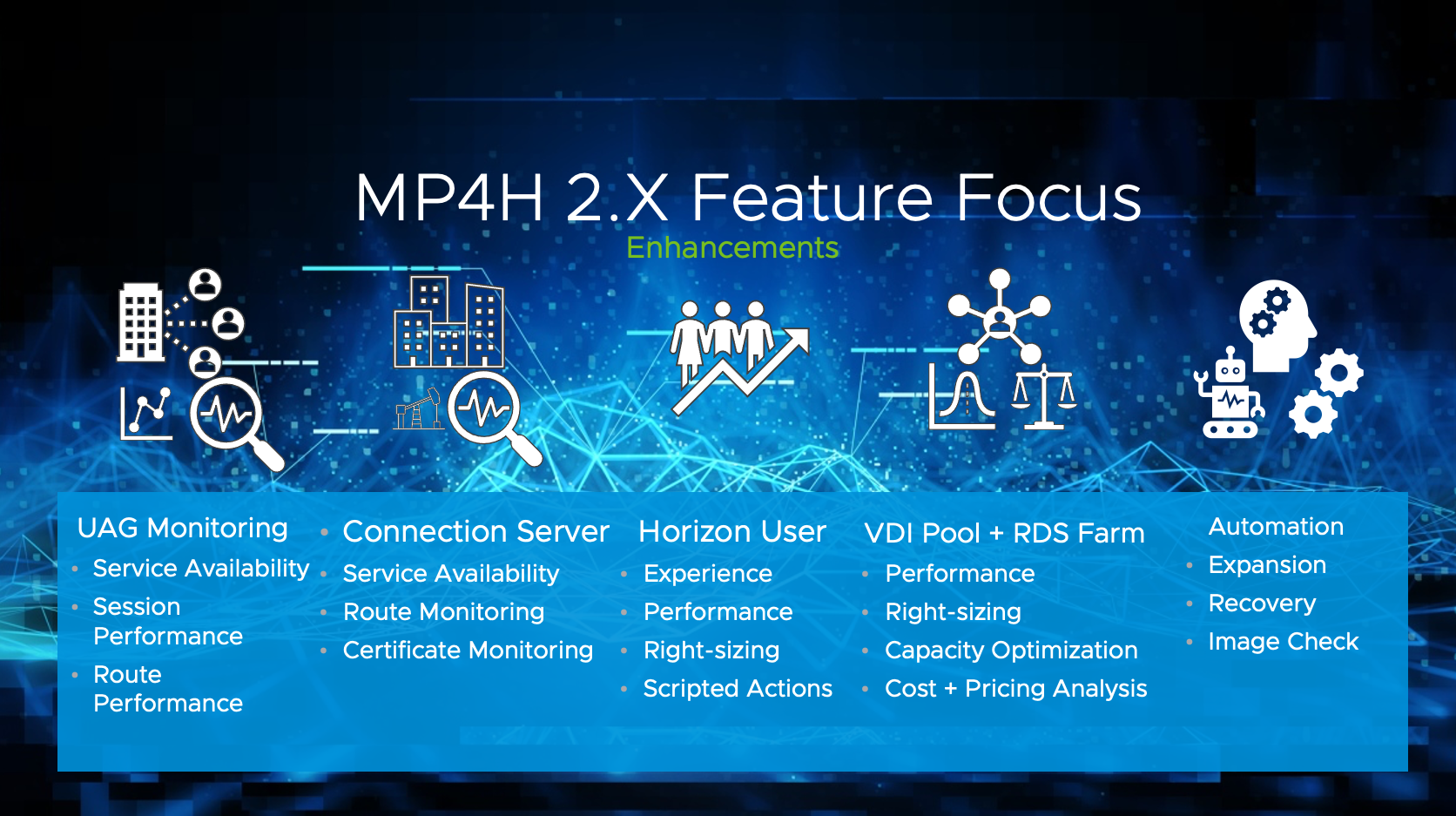
**Updated 10.3.2023
Since the first release of the Management Pack for Horizon and the shift to an API vs. Agent based architecture, questions have manifested as to what are the best practices for deployment and what factors should a customer consider before enabling the MP in their production Horizon environment?
This post is meant to cover those topics in detail and provide insight into potential configuration challenges and how best to avoid them.
**However, with any point-in-time article new considerations can emerge necessitating the need to test and validate your specific environment and configuration.
Download MP4H 2.6.1: https://marketplace.cloud.vmware.com/services/details/vmware-aria-operations-management-pack-for-vmware-horizon-2-6-1?slug=true
Before deploying…
>>>>>>> Stop <<<<<<<
For this brief service announcement!

While it would be amazing if you could simply install some code, click a few buttons, and everything just magically work, there are usually additional considerations that may impact that mythical moment from becoming a realization. All Horizon environments have a degree of uniqueness that necessitates the need to validate and test for any configuration or environmental conflicts that might prevent a successful deployment.
That is why I like to say, there is no “All” approach to deployments, rather there is a methodology that should be followed to help you achieve a high degree of success. That methodology is based on how vROPs and the MP are designed to collect data against the Horizon APIs, as well as various configuration aspects of the Horizon deployment.
Areas of consideration:
- MP4H Requirements
- The overall Horizon architecture and network topology
- Size and scale of the Horizon deployment
- # of Concurrent Sessions per Horizon Pod
- # of Connection Servers per Horizon Pod
- Load balancer configuration
- Horizon Connection Server Certificates Configuration
- UAG topology
- Existing monitoring solutions
- API Authentication
Now let’s move forward with the solution requirements and we can dig into why these topics matter….
MP4H Requirements
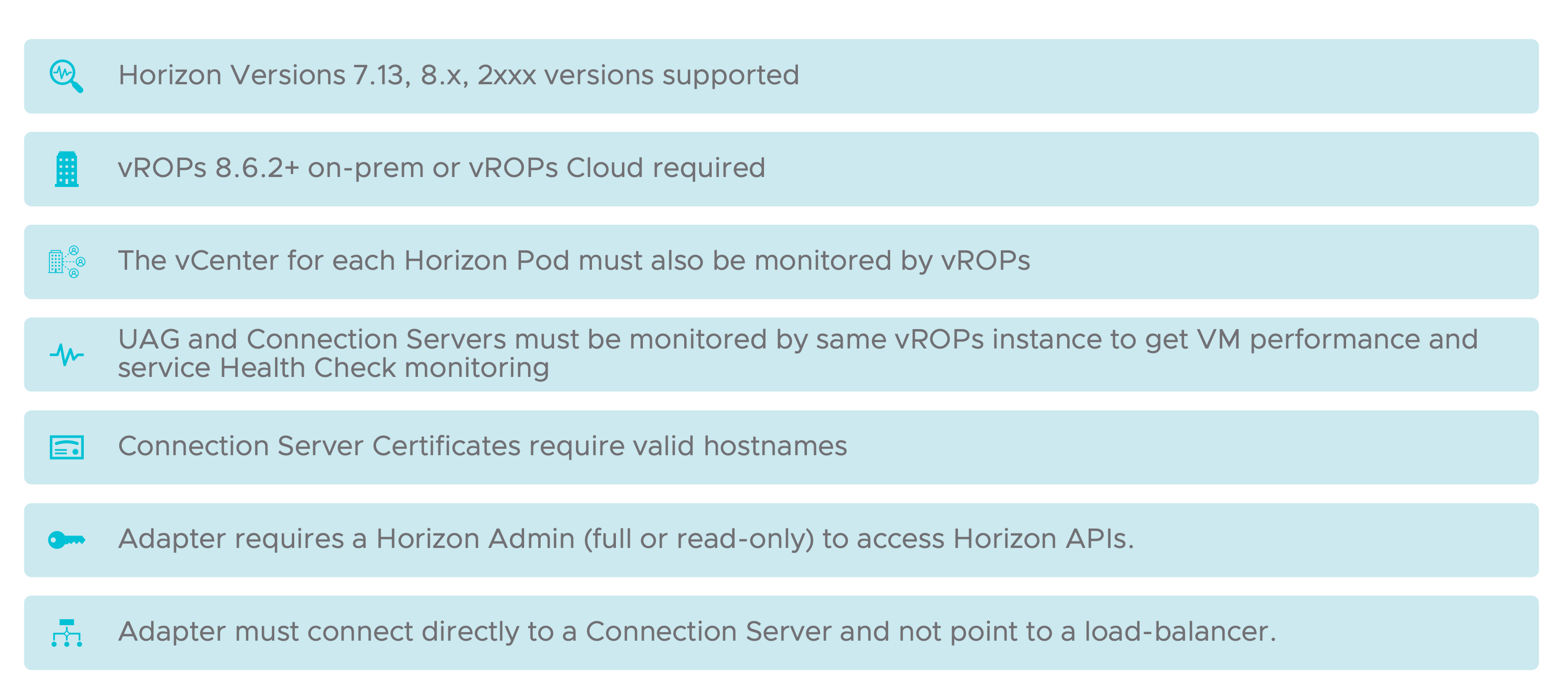
**If the old vROPs for Horizon adapter (V4H) is installed, MP4H will not collect data!!!
Recommendation is to uninstall V4H before installing the MP4H adapter; However, if you have already installed the MP4H adapter, simply removing the V4H adapter should resolve the issue.
Horizon Version Support: ** please check the Interop Matrix for the latest supported version information comparing Horizon Version to the version Management Packs for Horizon that are supported.
Horizon to MP4H Interop Matrix: https://interopmatrix.vmware.com/Interoperability?col=569,&row=708,
Horizon 7.13+ is supported with MP4H. This allows customers still on Horizon 7.13 with the older V4H adapter to move to the new MP without having to first upgrade to the Horizon 8/2xxx platform. Once you decide to move to Horizon 2xxx the same adapter will support the new version of Horizon.
While 7.13+ is supported, not all versions will be supported with the latest version of the Management Pack. Please check the Interop Matrix to confirm supported versions.
The planned support model is N & N-1, to include ESB branches moving forward. As long as there are no SDK changes in older versions, then they will also be “supported not tested”.
**Horizon 7.13 End of Support is April 30th, 2023.
vROPs Version Support: ** please check the Interop Matrix for the latest supported version of Aria Operations and the version of the Management Pack for Horizon you plan to deploy.
vROPs to Horizon Interop Matrix: https://interopmatrix.vmware.com/Interoperability?col=116,&row=708,
The current minimum supported version with MP4H 2.6.1 is 8.10, but 8.12.1 is the recommended version. 8.12 will also work, but there are some known UI bugs that are resolved 8.12.1.
vCenter needs to monitor all Horizon Desktops and Management Components:
MP4H still relies on the vCenter adapter to pull VM level and Guest OS metrics from the Management Servers and Desktops within the Horizon Service. If there are objects outside of vROPs monitoring visibility we will not be able to populate VM level performance metrics, or have the ability to calculate the DC% Performance calculation on those objects.
Unified Access Gateways and Connection Servers also need to be monitored by vROPs:
If these objects are not monitored by the vCenter adapter in vROPs we will not collect their VM level performance data. Some data will still be collected, but they will be based purely on the available Horizon API data.
Connection Server Certificates require valid hostnames:
When you configure the Horizon Adapter to communicate with one of the Connection Servers in the Pod, vROPs will attempt to validate the CS certificate and the hostname associated with certificate. If the hostname in the certificate does not match the FQDN of the Connection Server vROPs will reject the certificate, as it cannot validate the authenticity of the Connection Server host providing it. It is recommended to have the Subject Alternative Name of the valid FQDN for the Connection Server in the certificate (or wildcard), so that vROPs can properly validate the certificate and establish a secure connection to the host.
Horizon TLS Certificate Documentation: https://docs.vmware.com/en/VMware-Horizon/2203/horizon-scenarios-ssl-certificates/GUID-47B2EA38-E319-4DC2-9AA4-881AED3DBB58.html
The following diagram highlights the recommended certificate configuration:
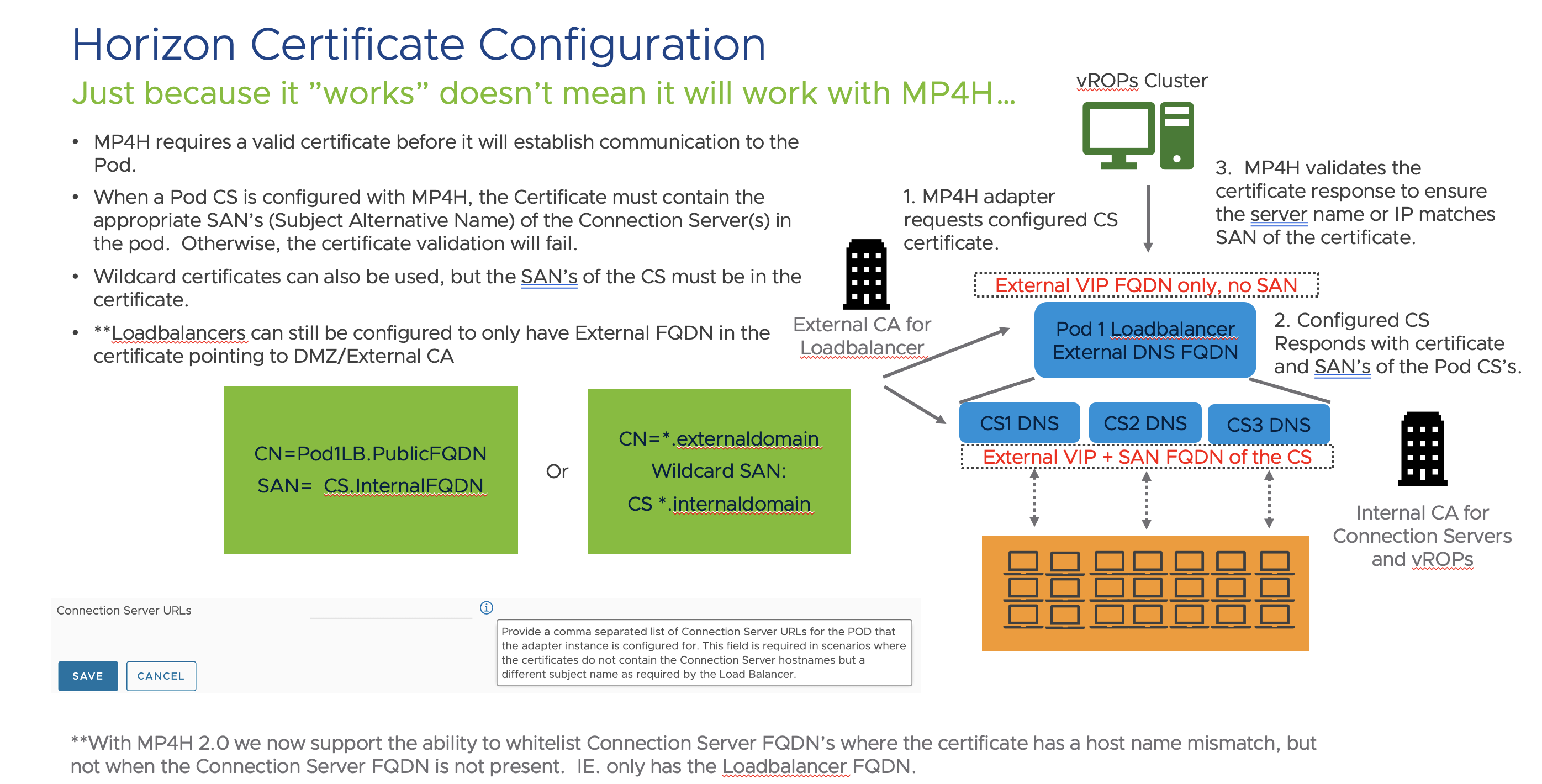
- External vs. Internal CA’s are not a requirement, but more of a common practice to obscure the internal CS domain names from the outside connections.
- The important takeaway is to have a Subject Alternative Name value on the Connection Server certificates that contains either the FQDN of the CS’s or a generic Wildcard (*.yourdomain) that vROPs can properly validate with the Internal CA.
- Fun Fact: If SmartCard authentication is set to “required” on the Horizon Connection Server the Horizon API will be inaccessible to the MP. Change this setting to optional to allow the MP to authenticate against the API. ** This will be addressed in an upcoming Horizon release.
The MP4H adapter requires an account with Horizon Admin privileges (full or read-only) to access the Horizon APIs:
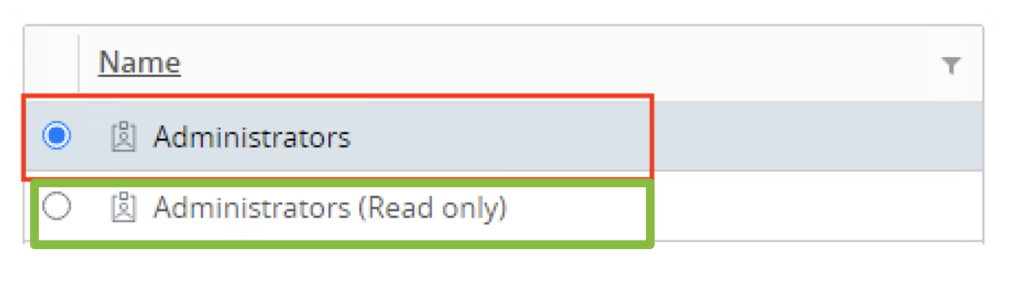
When configuring the MP4H adapter to authenticate against a Pod Connection Server, you must provide an account with a Horizon Admin role (full or read-only). Both Horizon Administrator roles (full and read-only) are built-in roles for Horizon, and an Active Directory service account should be created and assigned one of these roles. Which role you choose is Horizon version dependent, but the full Administrator role works with every version.
- Horizon 7.13 through Horizon 8.2 requires the Administrators role.
- Horizon 8.3/2106+ can use the Administrator (Read only) role.
The MP4H adapter needs to point directly to a Horizon Pod Connection Server and not to a Load Balancer: When configuring the MP4H adapter to point to your Horizon Pod you must provide the FQDN or IP of a Connection Server and not point it to the Load Balancer VIP for the Pod. The Horizon APIs do not support Load Balanced queries, so even though it may initially connect and provide some data, the end result will be missing and inconsistent data coming into the MP4H adapter. Not cool!!!
The following diagram highlights what you can and can’t do to configure the adapter to communicate with Horizon:
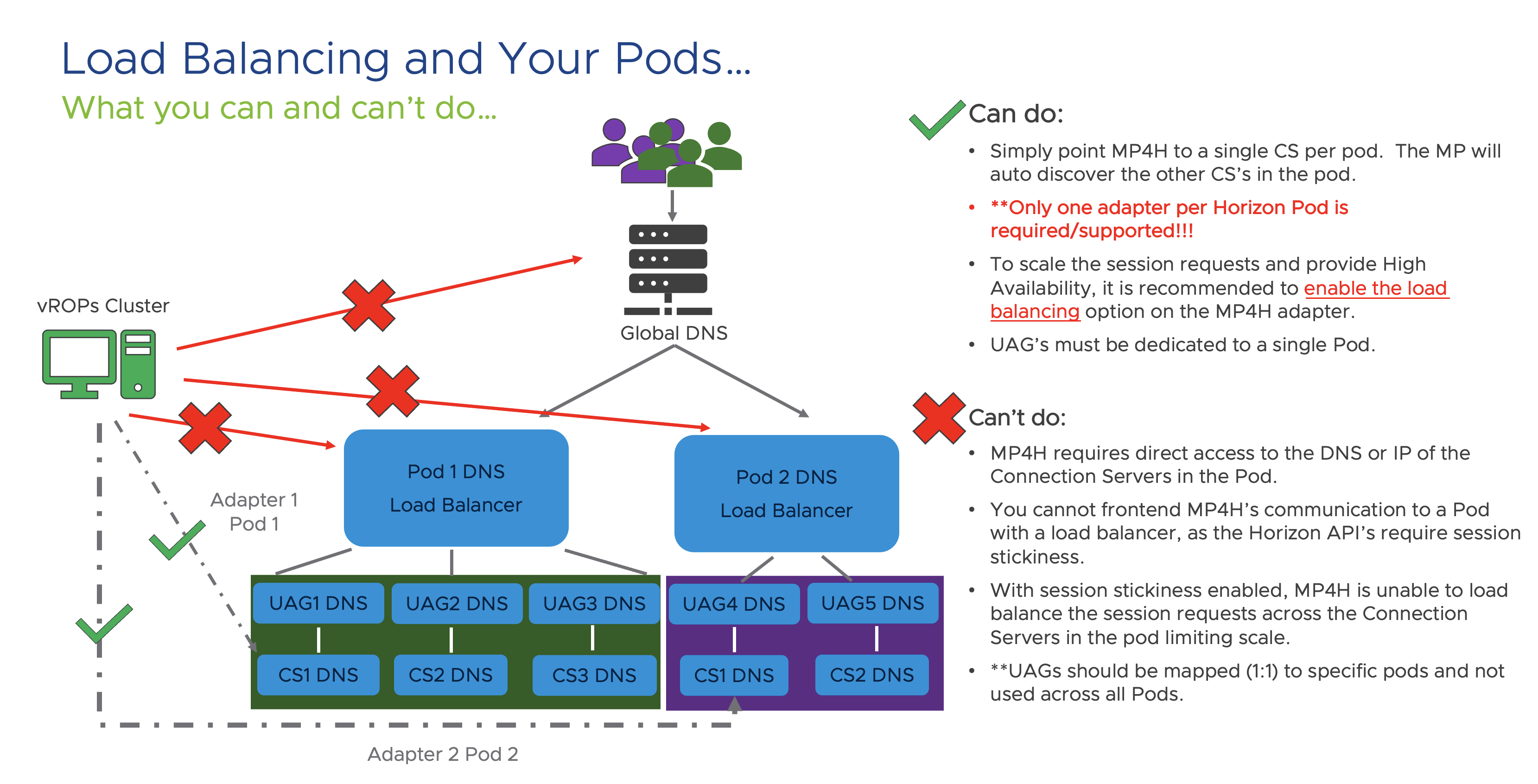
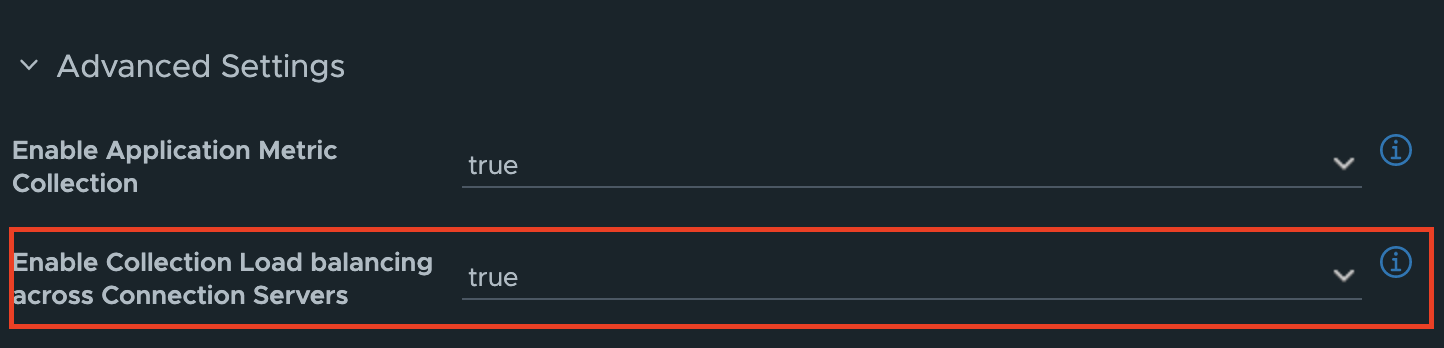
To enable Load-Balancing across the Connection Servers in the Pod, simply enable the load-balancing option under the Advanced Settings of the Horizon Adapter. The Adapter will automatically discover every CS in the Pod and will attempt to load-balance API calls across the Connection Servers. This option provides both High-Availability to maintain communication in the case of a loss of CS, as well as scalability in the number of API requests that can be made to the Horizon Pod.
Pausing for another brief service announcement……
Do not Load-Balance your UAG’s across Pod boundaries!!!

While this may seem like a good idea, and technically it will function, doing so has dire consequences:
#1 It’s not supported in Horizon!!!
Link to documentation: https://docs.vmware.com/en/VMware-Horizon/2203/horizon-cloud-pod-architecture/GUID-5BCD8A4B-EEA4-44D2-94BE-535A1A9D815F.html
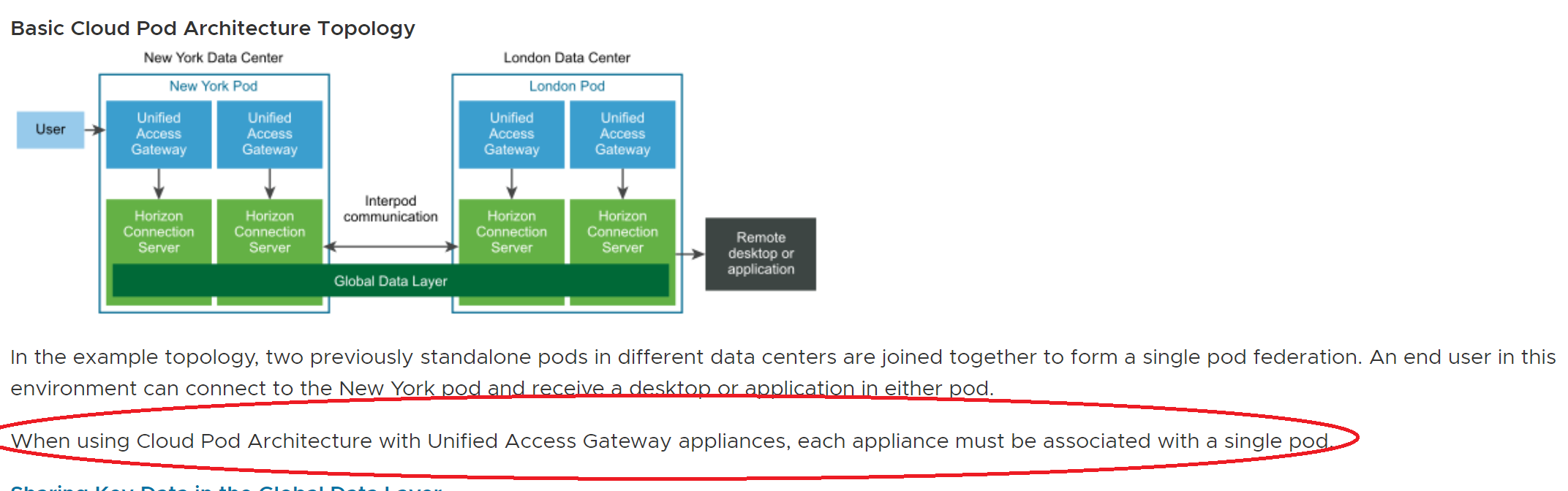
#2 It removes Fault Domain Isolation between the Pods!!!
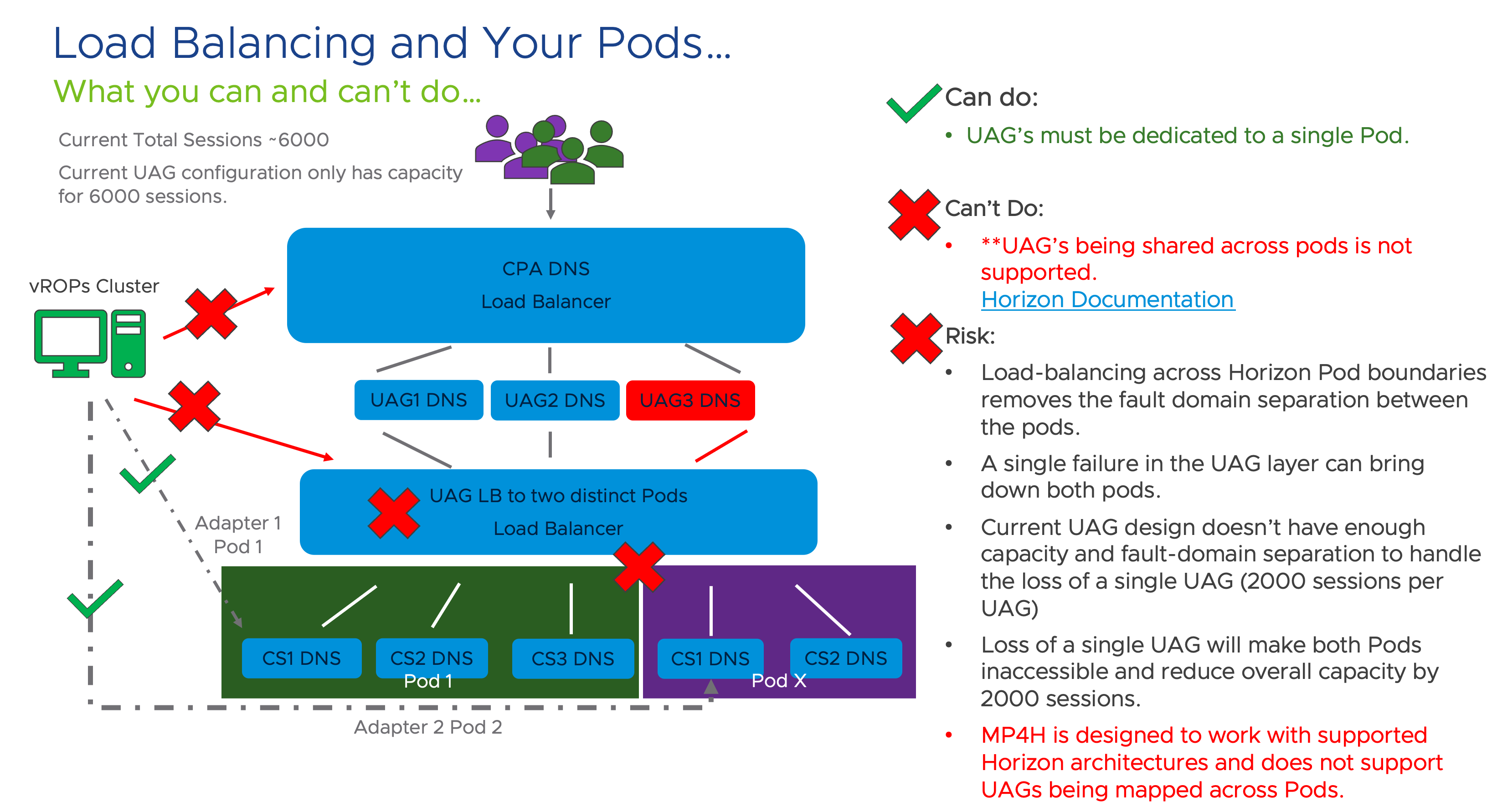
#3 MP4H does not support this configuration and it just breaks stuff!!!
While the adapter will still be able to collect data regarding the UAG’s, each POD is reporting its own distinct UAG servers, and the adapter will treat the UAG as a net new item per Pod that it is associated with. It has also been observed that the Horizon Pods intermittently lose their API connection to the UAG’s and they are unable to provide the necessary health and connectivity metrics to the Pod. Not cool!!!
Now let’s discuss Horizon API Scalability and how pulling different metrics impacts scale.
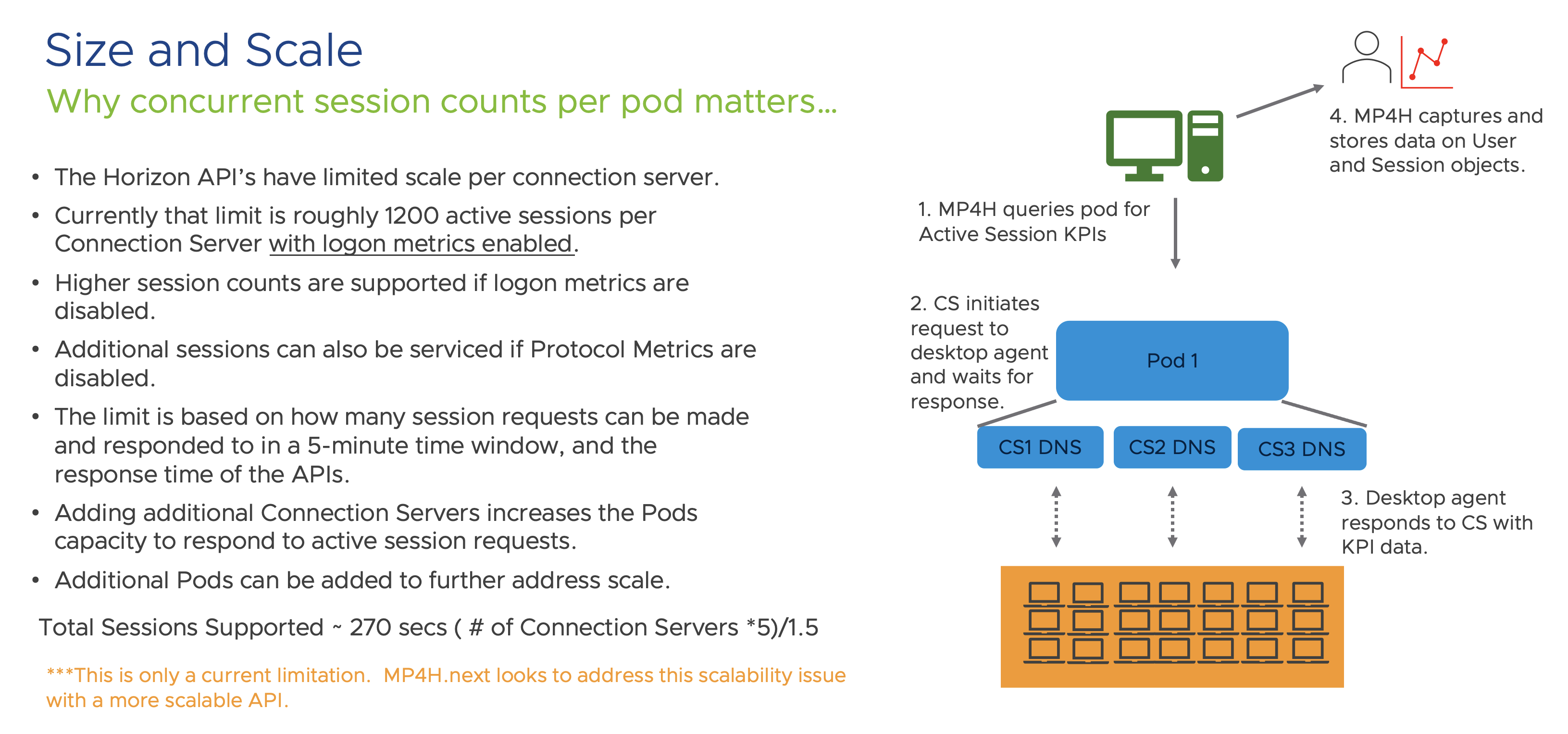
Regardless of the platform or the cloud platform, all API’s have limitations on the ability service a certain number of requests in a given time period. With Horizon, the number of requests that can be serviced in a 5-minute interval is dependent on the type of metric and the number of objects that the metrics has to come from.
Pod level metrics regarding configuration and state of the Pod, Pools, Farms, UAG’s, etc. do not really impact size or scale since the number of objects are relatively low. Session counts on the other hand can impact scale dependent on the number of sessions and the types of metrics being requested. For example, session status and properties are lower impact because the metrics are directly available in the Horizon Pod API and the time to process them is relatively quick. However, other metrics such as Login Times and Protocol metrics must be queried from the desktop by the Connection Server and the time that it takes to get a response per session from each desktop lowers the number of sessions that can be queried in a given time period.
If the “Collection Time” starts to exceed the 5-minute collection window, additional tuning to the adapter or adding additional Connection Servers to the Pod with the load balancing option enabled increases the number of session requests that can be made in the 5-minute time window. You can also create new Pods with an additional MP4h adapter to further increase overall scale.
*Using two different Horizon monitoring solutions that both communicate to the Horizon API can impact scale, as the overall number of requests that the Horizon Pod can support is finite.
**Different APIs are being investigated to see if the current API limits can be improved upon.
The following diagram highlights the Pod scalability:
Let’s wrap this up…
As you can see from the topics covered in this post, there are a number of factors that must be taken into consideration during the deployment of the latest Management Pack for Horizon. While all factors aren’t necessarily exclusive to this MP, the purpose of this article was to help provide a better understanding of how the MP and the Horizon APIs work together to provide rich insight into the health and performance of a Horizon environment.
In the future, we plan to investigate where we can further simplify or minimize some of the considerations outlined in this post. But until that day happens… I hope this article provides you a guidepost to make your deployment successful.
MP4H 2.0 What’s New and Use Cases
As of 1.27.2022, the Management Pack for Horizon 2.0 is now released and available for on-prem or cloud customer deployments! This is an exciting release as it brings a number of groundbreaking features to further enhance our customer’s ability to successfully monitor, maintain, and optimize their Horizon deployments.
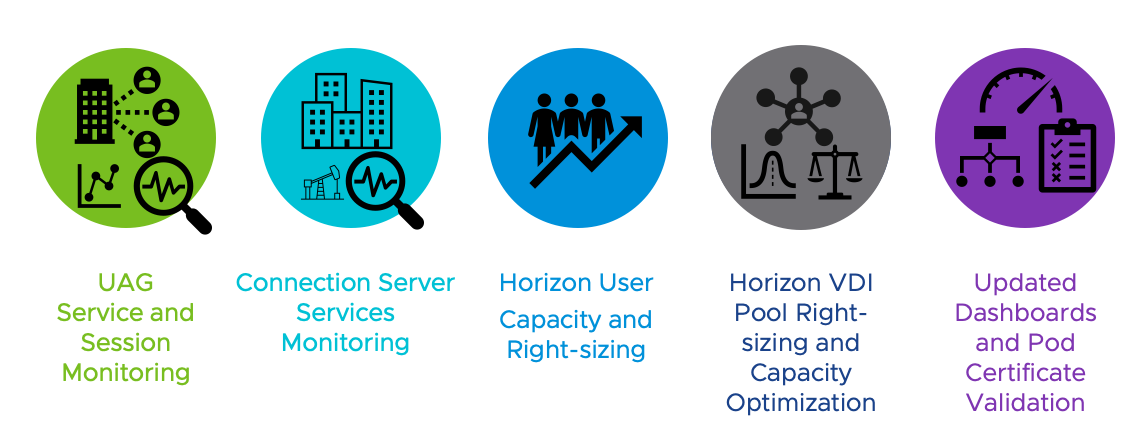
This list of enhancements include:
Primary use cases for Unified Access Gateway (UAG) monitoring include:
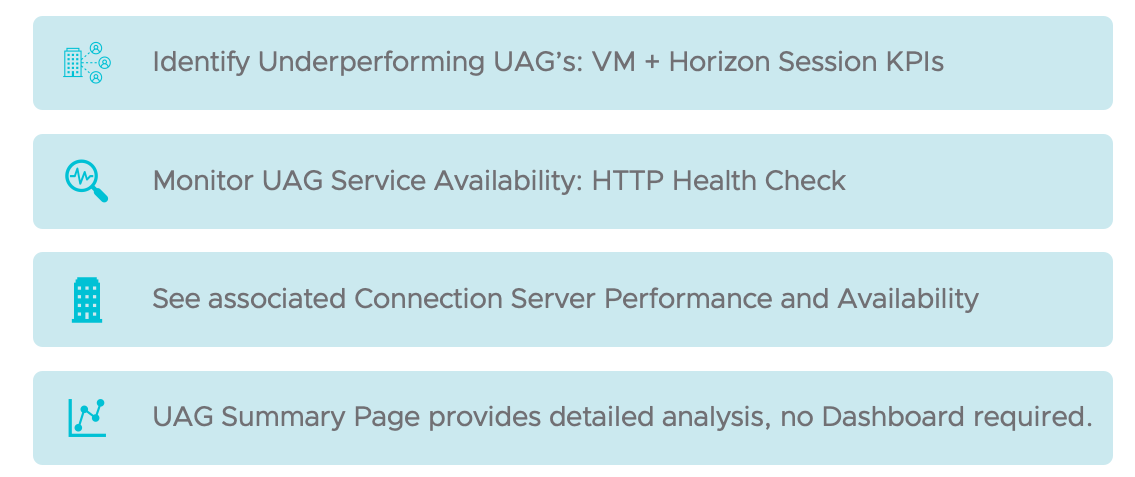
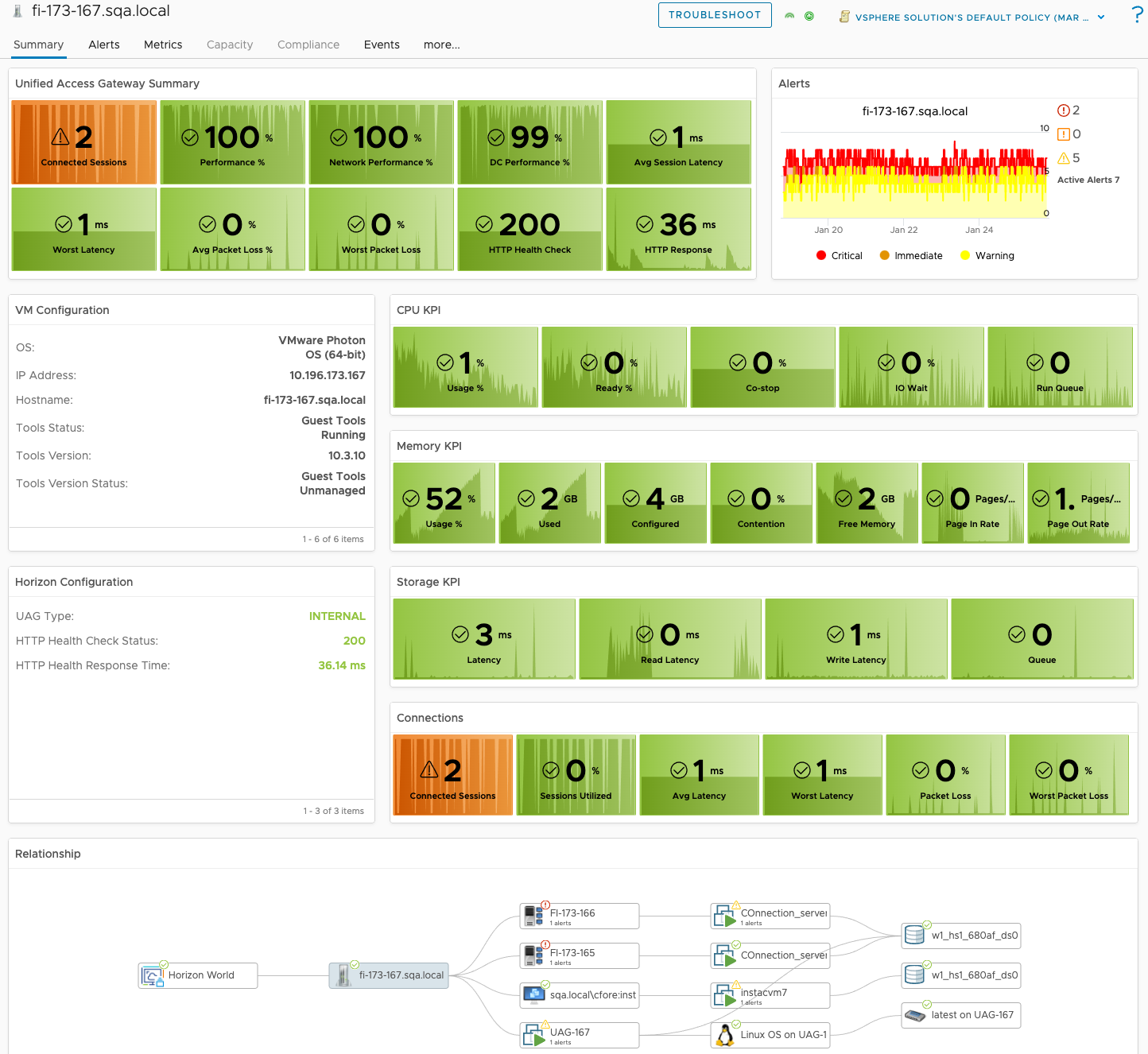
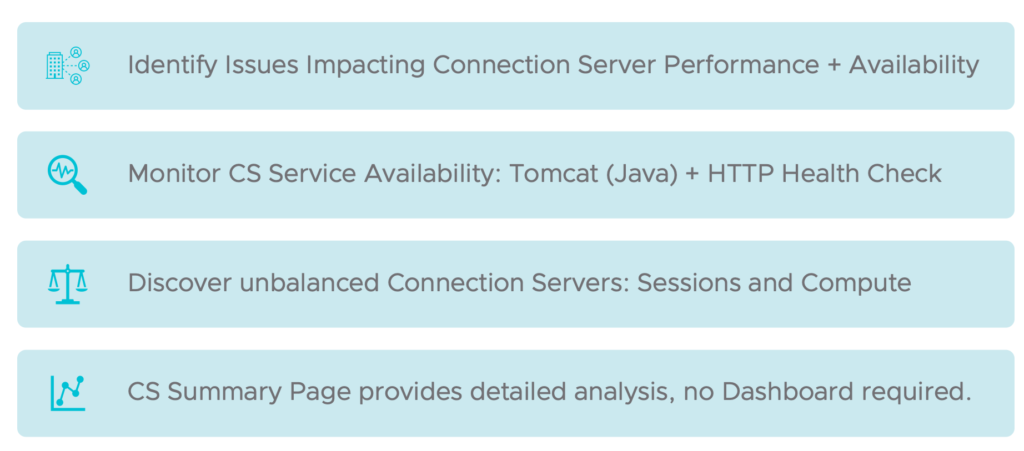
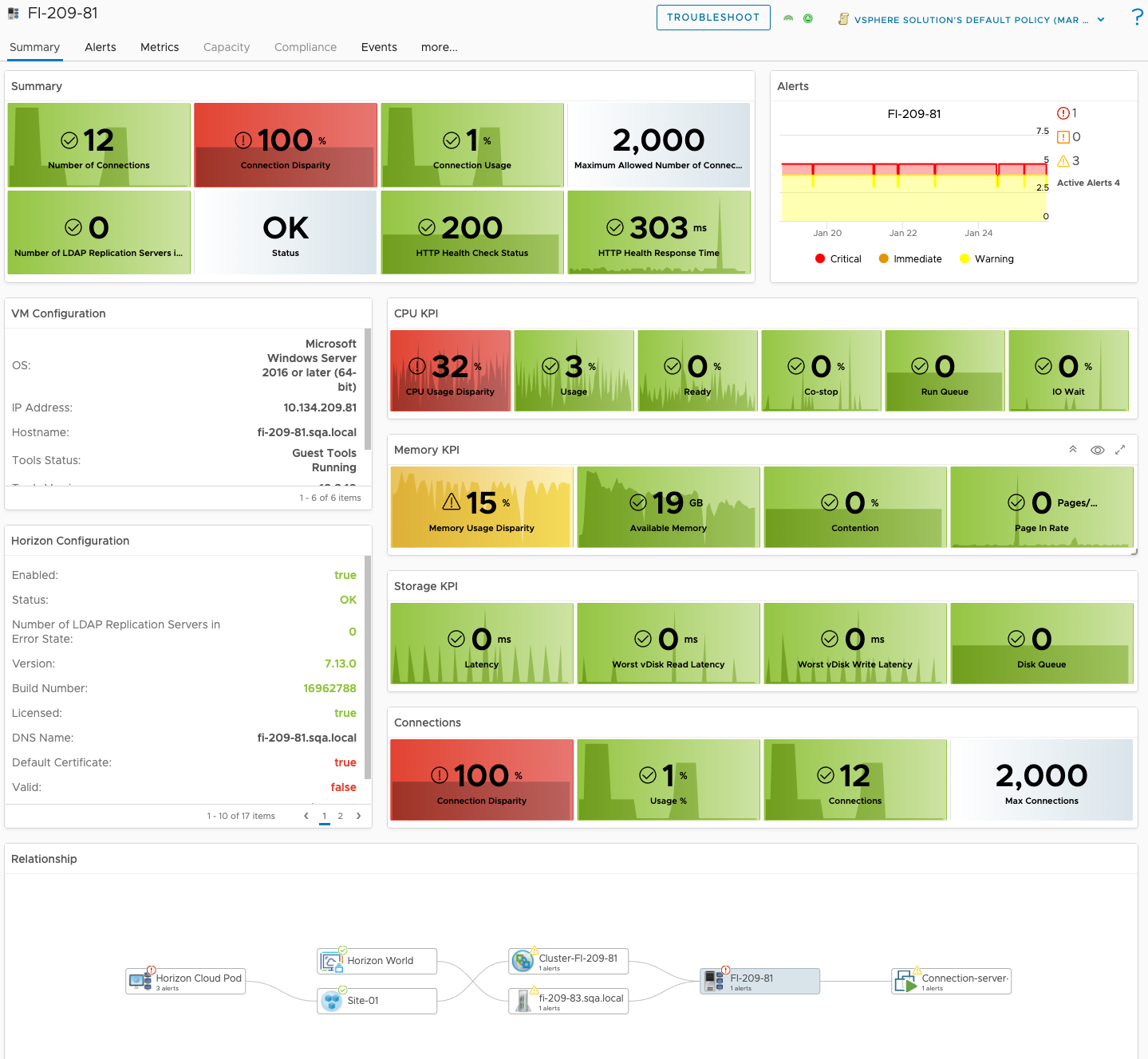
Primary use cases for Horizon Connection Server monitoring include:
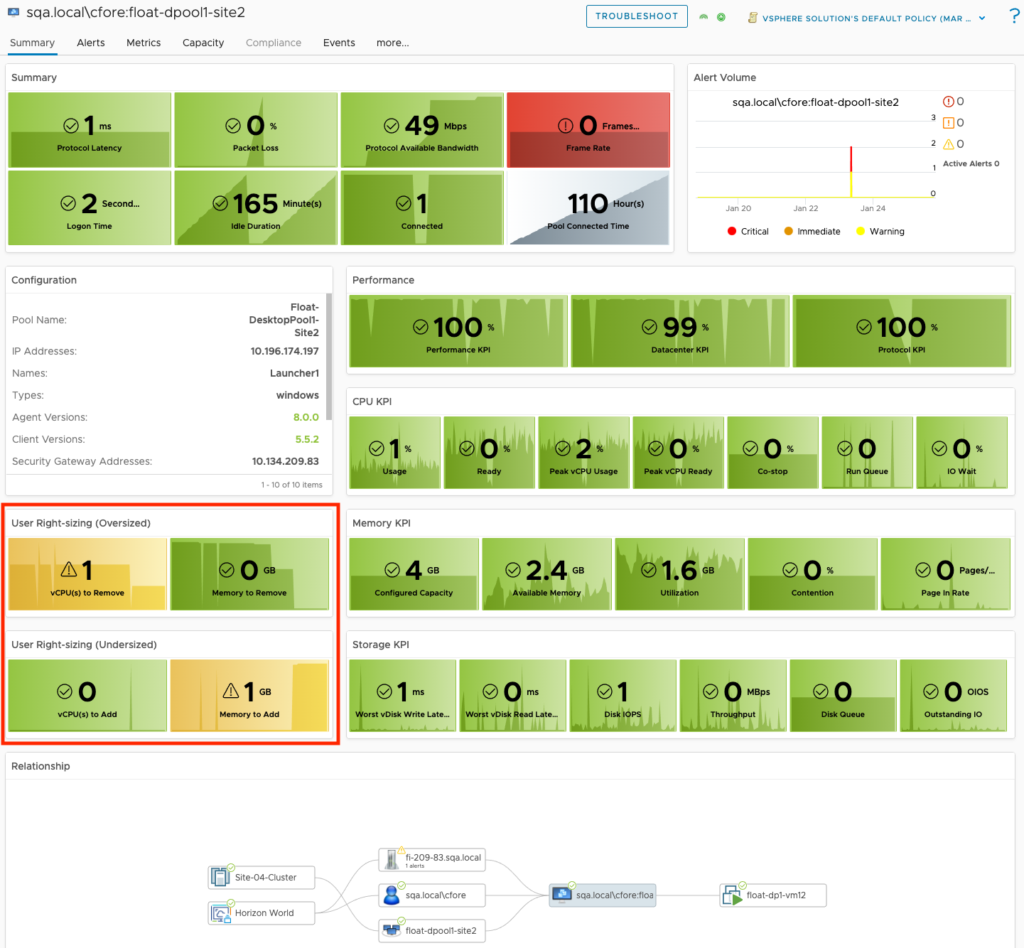
Introducing Horizon User Capacity and Right-sizing metrics:
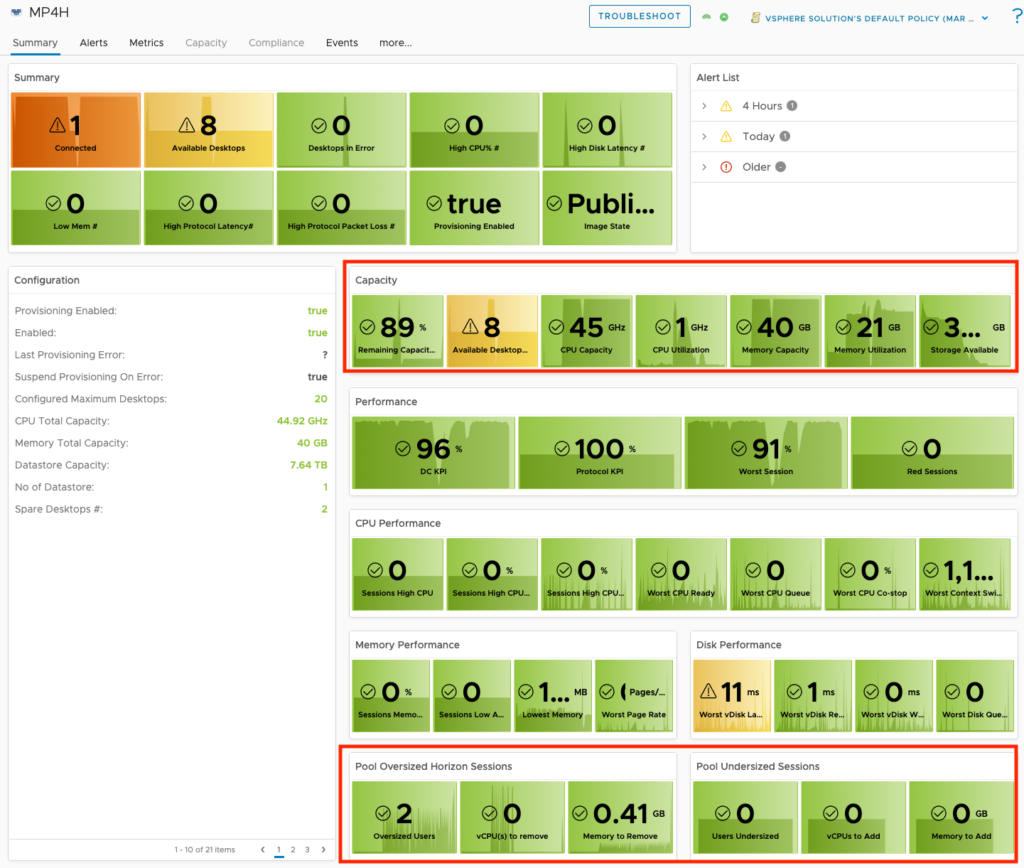
Introducing Horizon VDI Pool Capacity and Configuration optimization metrics:
Horizon User Experience/Performance KPI:
MP4H v1.1 What’s New Demo
The demo covers the latest features enhancements to the vRealize Operations Management Pack for Horizon v1.1 released on 4.22.2021.
Management Pack for Horizon v1.1 is now released!
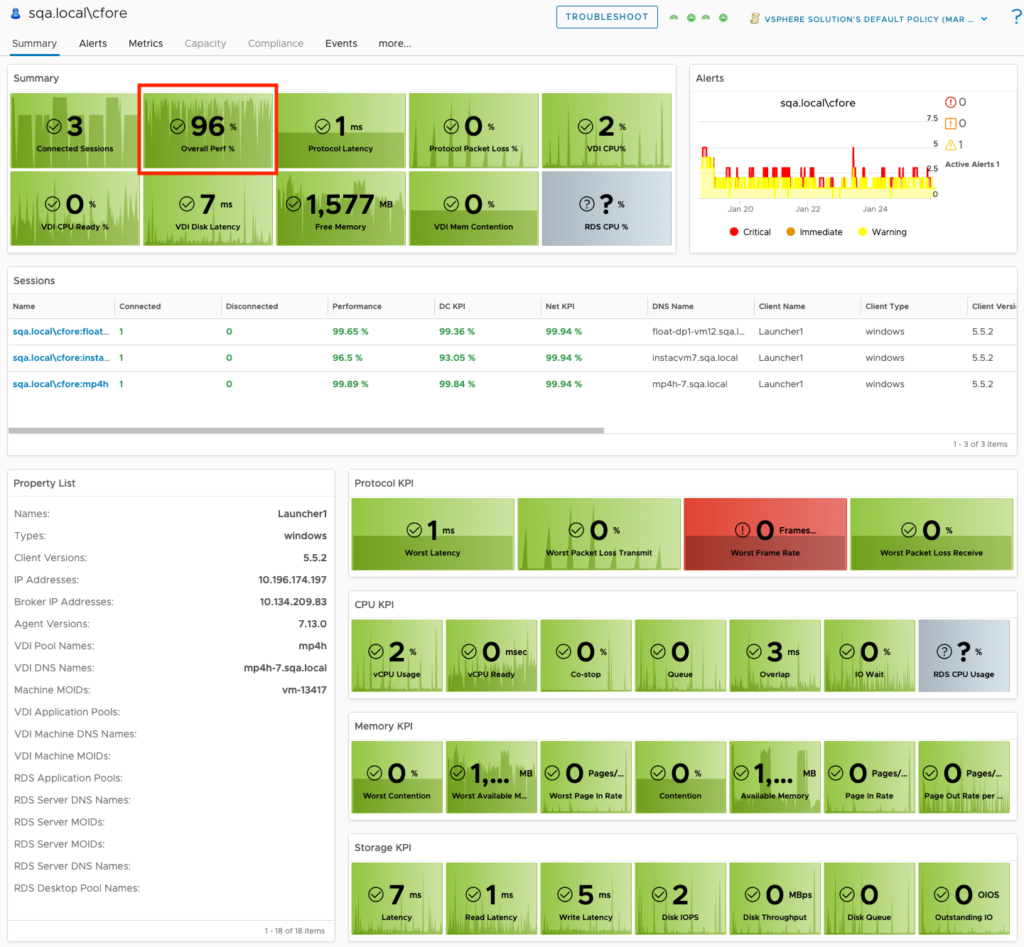
As of 4.22.2021, the latest release of the vRealize Operations Management Pack for Horizon v1.1 is officially released.
This will be the first release that allows for customers to run the new MP4H on-prem.
Enhancements include:
- On-prem availability
- Dashboard Enhancements
- Horizon Pool and Farm Capacity and Disparity Metrics
- Horizon Object Summary Page enhancements
- Logon Metrics
- Additional Protocol and User utilization metrics
Blog announcement: https://blogs.vmware.com/management/2021/04/announcing-whats-new-in-vrealize-operations-management-pack-for-horizon-1-1.html
VMware Marketplace: https://marketplace.cloud.vmware.com/services/details/vrealize-operations-management-pack-for-horizon-1-1-1?slug=true
vROPs 8.0 Horizon Adapter 6.7.1 Updated Dashboards
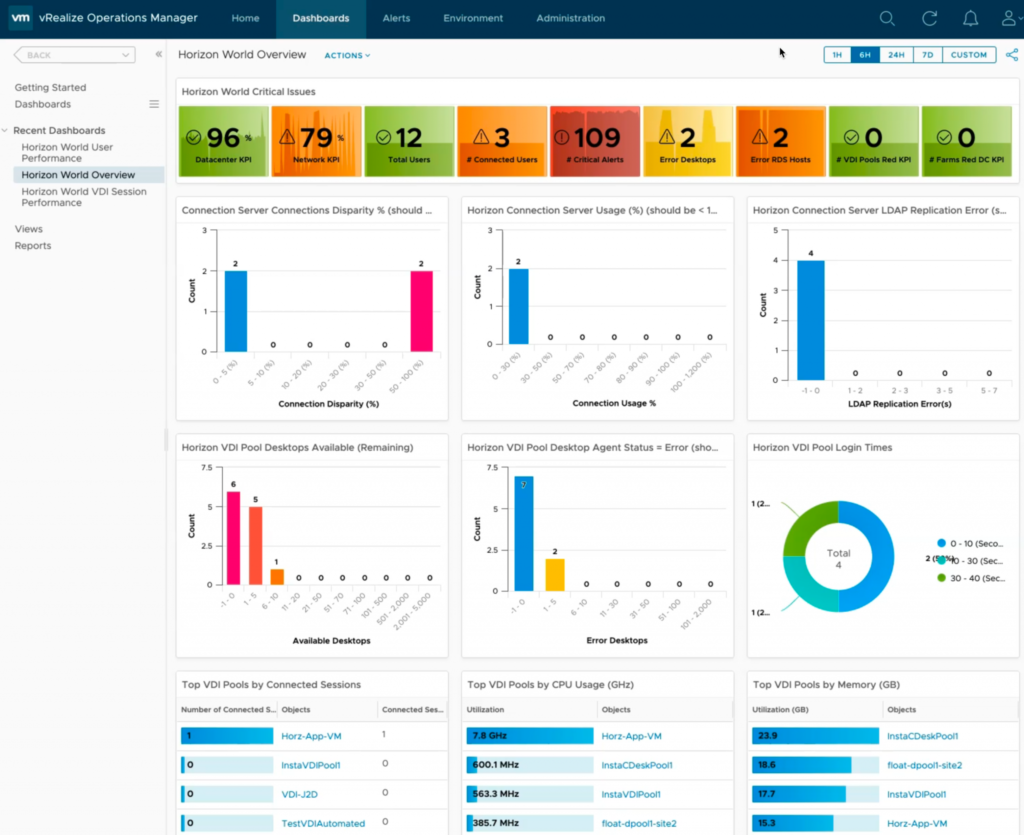
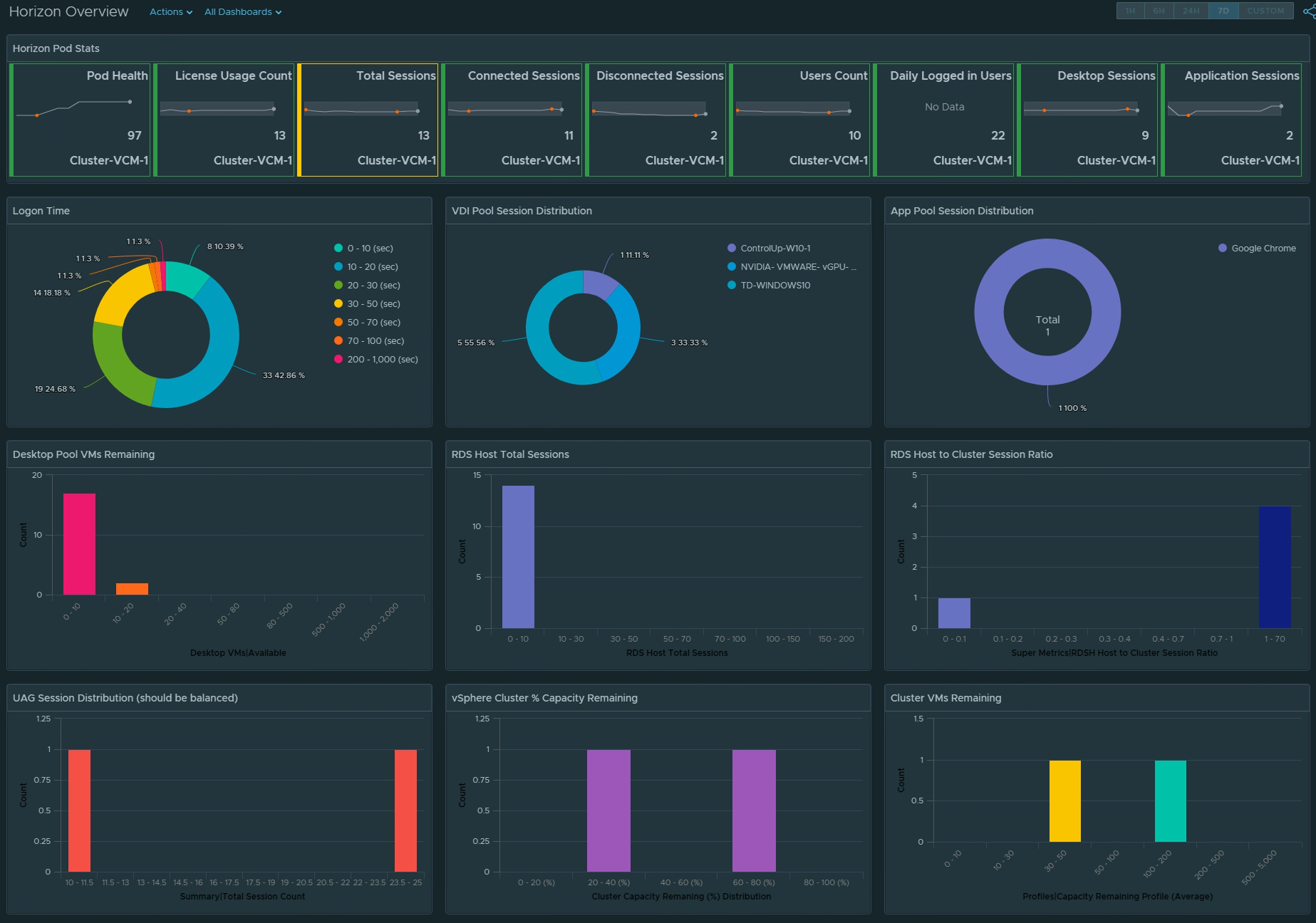
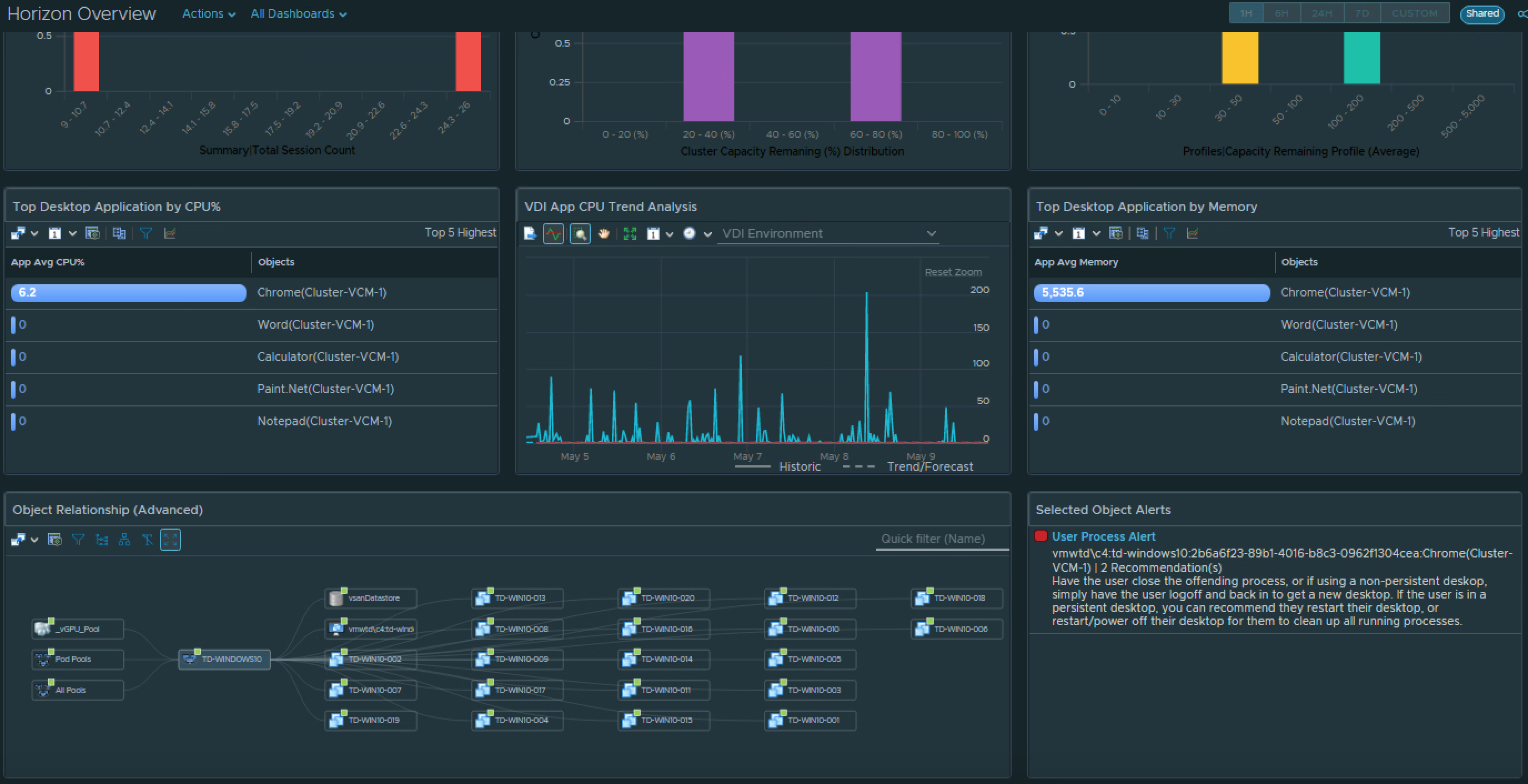
Horizon Overview
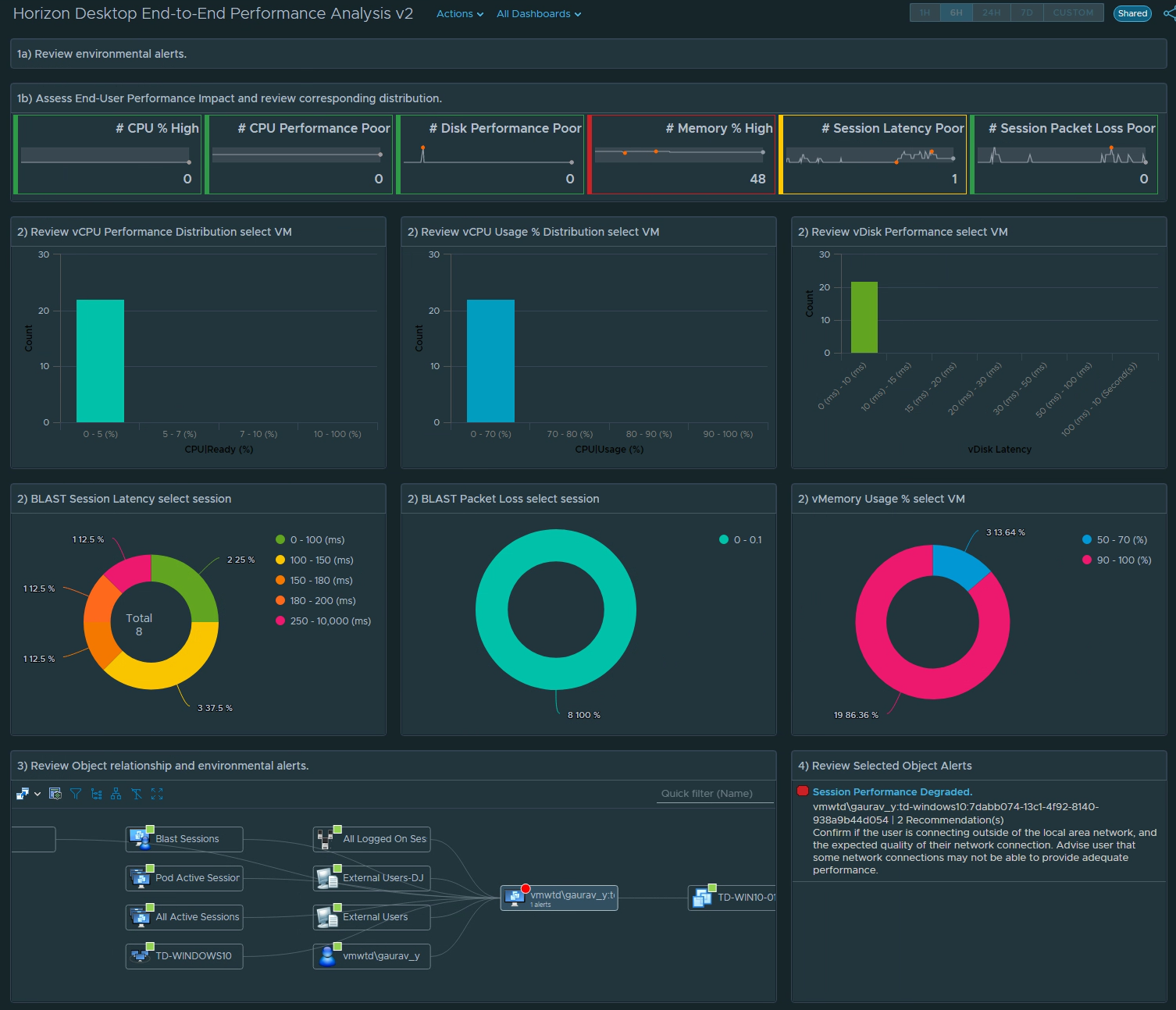
Horizon Desktop End-to-End Performance Analysis
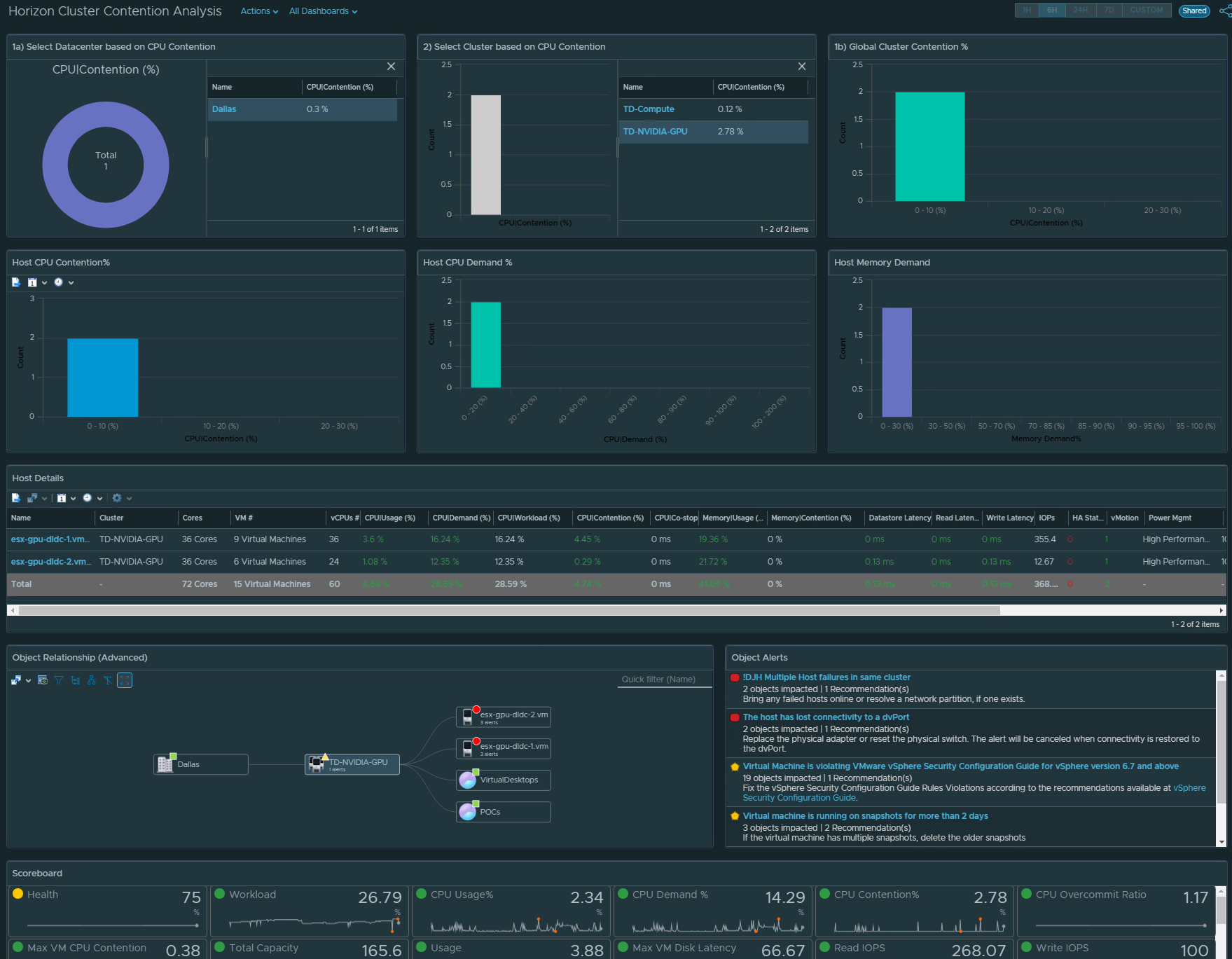
Cluster Contention Analysis
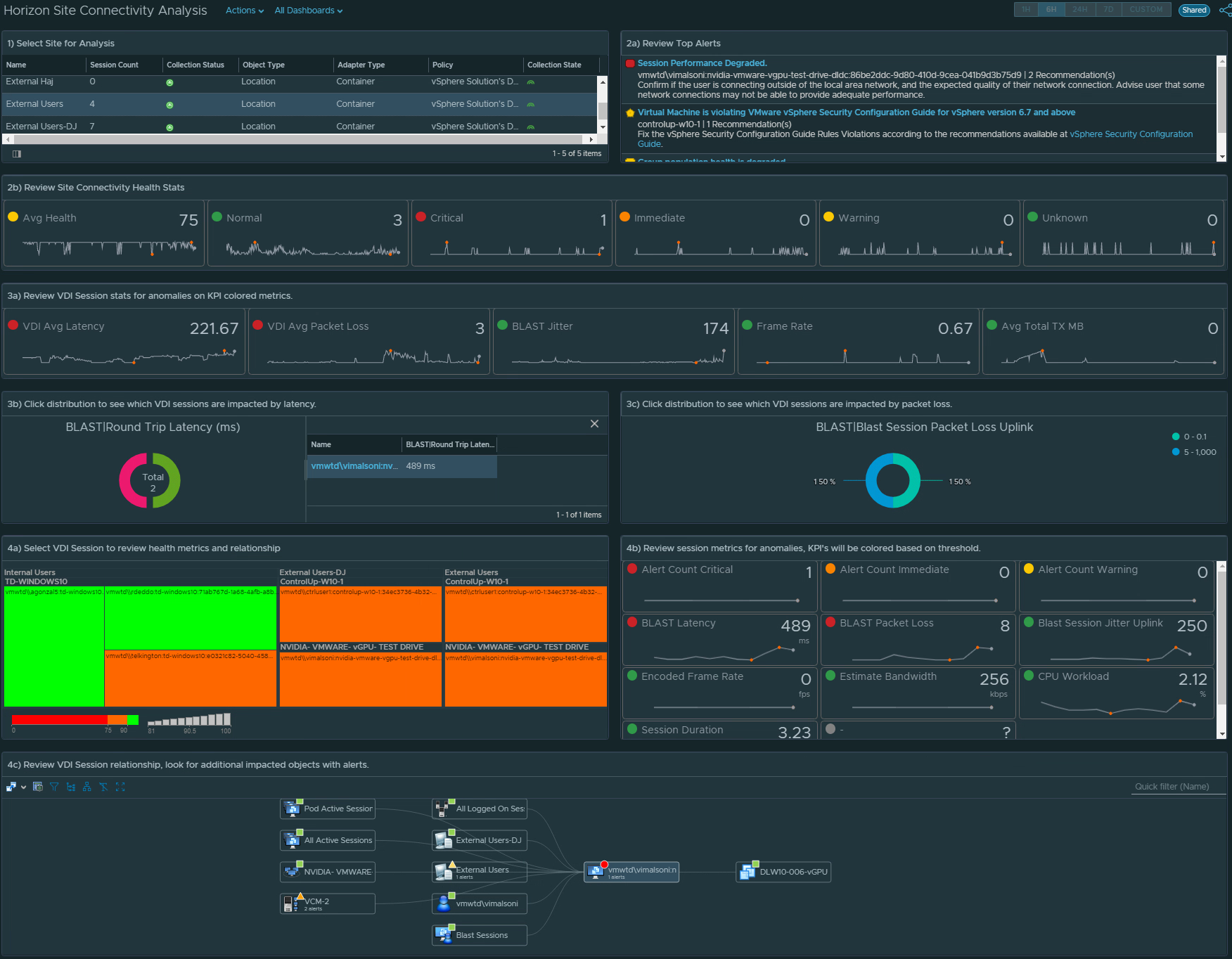
Horizon Site Connectivity Analysis
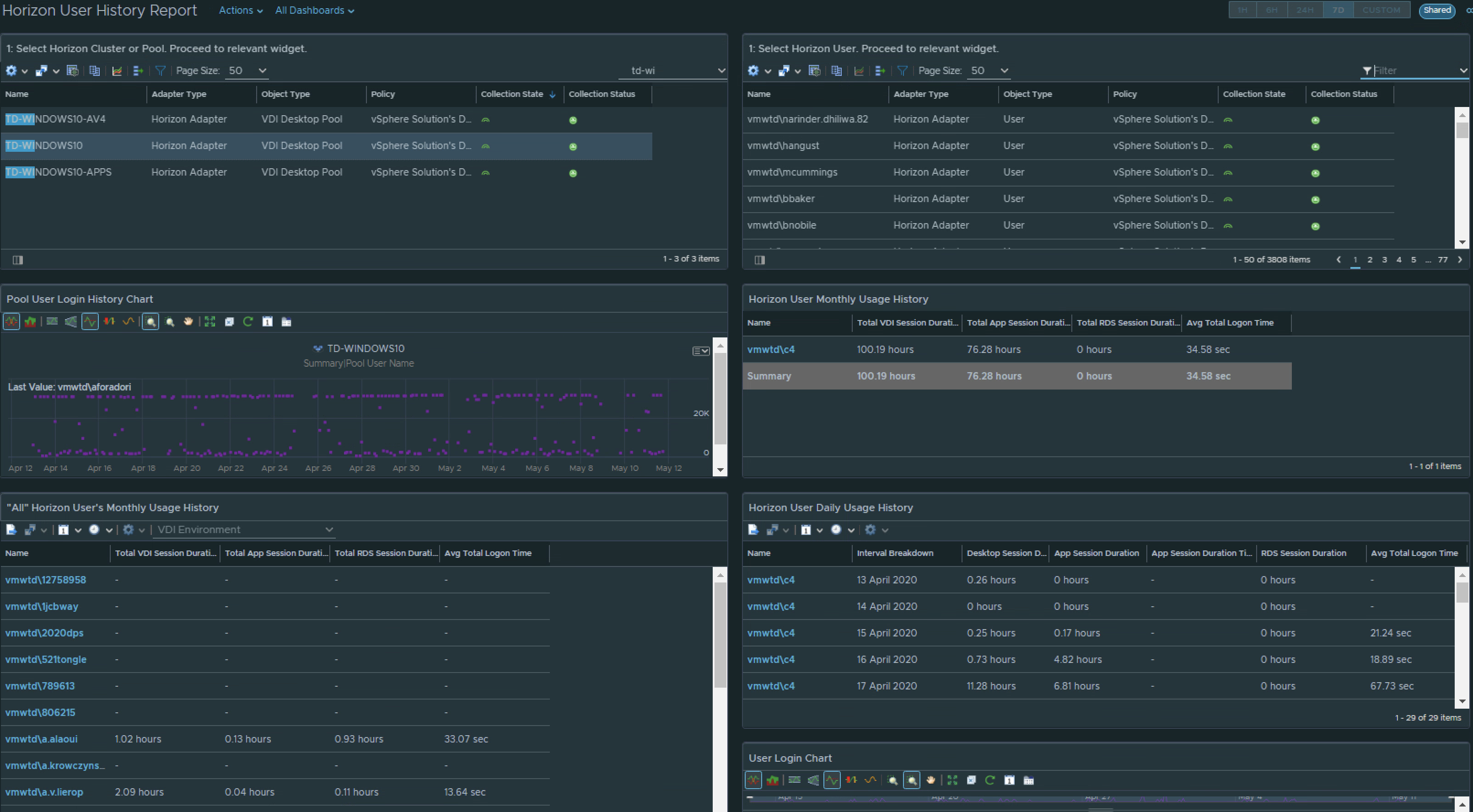
Horizon User History Report
Ready to Download?
** Dashboards can be demoed in the VMware TestDrive environment: https://portal.vmtestdrive.com/
Content Release Notes:
This content release includes a number of Dashboards, Views, and Super Metrics designed to take advantage of the User Interface enhancements in the vROPs 8.x platform, providing richer and more visually impacting insight into the overall health, performance, and consumption of your Horizon View deployment.
Compatibility: All content was created on the latest vROP 8.0 platform, so it has only been tested to work with this specific version. The Super Metrics are most likely to work with older versions such as 7.5, but the Views specifically have configurations options that were not available prior to vROPs 8.0.
With vROPs 8.0, only Horizon Adapter 6.7.x is fully supported, so make sure that your Horizon View environment is compatible with the vROPs for Horizon 6.7.x adapter.
Compatibility Matrix: https://www.vmware.com/resources/compatibility/sim/interop_matrix.php#interop&
Conditions: All content provided is on an as-is basis, and should be validated and tested before use in production environments.
*It is recommended that you import and configure the provided Views and Super Metrics before importing the dashboards. Examples of how to do so are provided in previous posts.